
Controller D-Pad Test
Test your controller D-Pad directions online. Check Up, Down, Left, and Right inputs in real time.
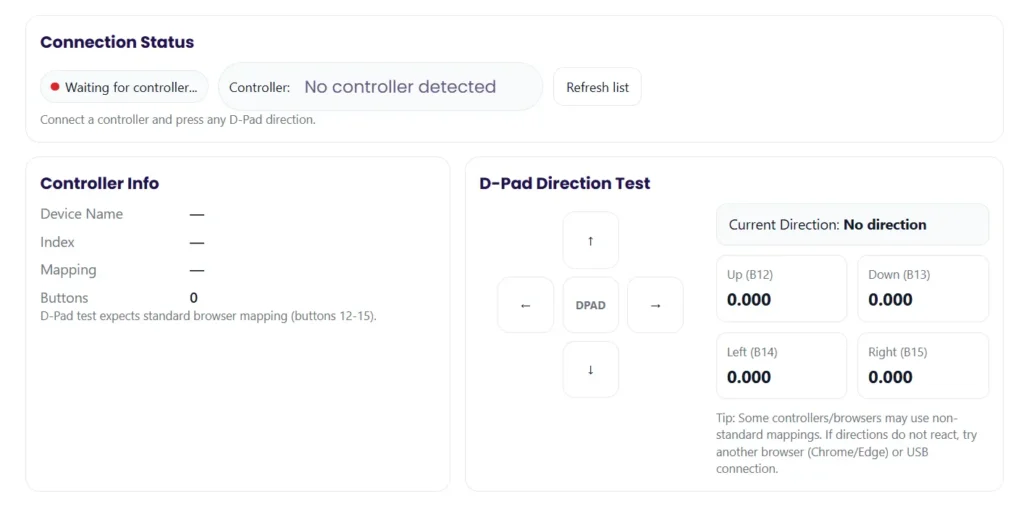
Connection Status
Connect a controller and press any D-Pad direction.
Controller Info
D-Pad test expects standard browser mapping (buttons 12-15).
D-Pad Direction Test
I’ve seen this happen a lot. You press the D-pad on your gamepad, but the game does something weird. Maybe the D-pad not working right. Maybe a press does nothing. Or the game moves even when you didn’t touch it.
A Controller D Pad Test helps check what’s really going on. I usually open an input tester and press each direction one by one. Up, Down, Left, Right. Then I try diagonal input like Up+Right. The goal is simple. Each press should show once. And it should stop right away when you let go.
This kind of test helps spot common problems:
- Missed inputs – you press but nothing happens
- Phantom inputs – the controller sends a signal by itself
- Diagonal input issues – diagonals trigger too easily or not at all
This guide focuses on testing first. Because the problem could be settings, drivers, or real hardware wear.
Most web testers work on PC, Android, and iOS in browsers like Chrome, Edge, and Firefox. But there’s a small catch. Some console modes do not show up in browser testers. So results can vary depending on the controller mode.
Key Takeaways
- Use a controller dpad test or input tester to see if each direction on your gamepad registers once per press and stops right after release.
- Try diagonal input and quick taps. These tests often show worn membranes or a loose pivot under the D-pad.
- Check software first. Things like remaps, Steam Input, driver settings, or accessibility controls sometimes cause a D-pad not working issue.
- Test the controller on another device or browser. Comparing results helps find if the problem comes from the controller or the system.
- Look around the D-pad for dirt or sticking edges. Simple cleaning sometimes fixes missed inputs.
- If the tester shows flicker, phantom inputs, or double presses again and again, the controller hardware likely has wear.
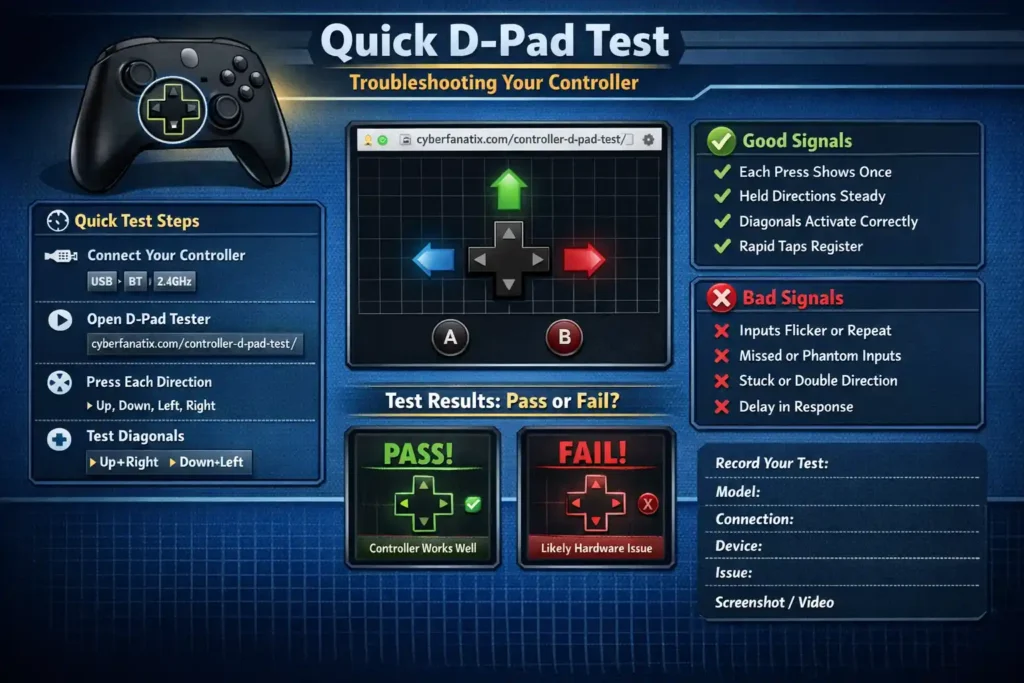
Quick D-Pad Test (60 Seconds): Simple Steps to Check Inputs
Alright. Let’s do a quick D-pad input test. I usually run this when a controller starts acting strange. The whole check takes about a minute.
Step-by-step test
- Connect your controller
Plug it in with USB, or connect through Bluetooth or a 2.4GHz dongle. - Open a controller tester
You can run a controller D-pad test here.
This works like a controller input viewer and shows every button press on screen. - Press each direction once
Tap Up, Down, Left, Right slowly.
Watch if each button press registers clearly. - Hold each direction
Hold the button for about 2 seconds.
The direction should stay active the whole time. No flicker. - Test diagonal input
Press combinations like:- Up + Right
- Down + Right
- Down + Left
- Up + Left
- Try rapid taps
Tap one direction quickly 10 to 15 times.
This helps reveal latency issues or bad debounce behavior. - Write down your setup
I usually note this for troubleshooting:- Controller model
- Connection type (USB / Bluetooth / 2.4GHz)
- Device and browser used
What good vs bad results look like
Good signals
- Each press appears once in the tester
- Held directions stay steady
- Diagonals activate only when pressed together
- Rapid taps register cleanly
Bad signals
- A direction does not show up
- Inputs flicker or repeat
- A direction activates without pressing
- Delay appears between press and response
If the browser tester fails to detect the controller, you can also check the Windows controller panel through Microsoft support.
Using an Online Tester: What It Measures and What It Can’t
I usually start with a web gamepad tester when a D-pad feels strange. It’s quick and you don’t need to install anything. The browser reads controller signals using the browser Gamepad API. When you press a direction, the tester shows a simple on or off signal. That makes it easy to see if a press registers, if a direction stays stuck, or if inputs toggle very fast.
A tester like this works well for basic checks. You can see if the D-pad input activates, if it releases properly, and if rapid presses show up correctly. If you want to check the rest of the controller too, you can run a full controller test.
Most testers work best in Chrome, Edge, or Firefox because those browsers support the Gamepad API well. But a few limits exist.
Common limitations
- Some console controller modes do not show up in browser testers
- Browser permissions can block the controller until you press a button
- Overlays like Steam Input can change how the input appears
- Some devices show partial controller compatibility depending on drivers
I usually try two quick things to be sure. Test in a second browser. And try a USB cable instead of Bluetooth. That removes a lot of variables.
For deeper technical info about how browsers read controllers, you can check the Gamepad API documentation here.
Interpreting Your Results: Pass/Fail Signals (With Examples)
Alright, now comes the important part. You ran the test. Buttons lit up on the screen. But what do those results actually mean?
I usually look for patterns. A single strange result can happen. But if the same issue shows up again and again, the tester is telling you something real about the controller.
Here’s a simple way I read the results.
| Symptom in Test | Likely Cause | What I’d Do Next |
| One direction shows no input | Mapping problem or worn contact pad | Check controller remaps or profiles. Then test again in another app or tester. |
| Stuck D-pad direction stays active | Debris, worn membrane, or loose pivot | Clean around the D-pad and press around the edges to see if it releases. |
| Direction shows double input | Button bounce or membrane wear | Run rapid tap tests again. If double presses repeat, the hardware may be worn. |
| Diagonals trigger by mistake | Pivot wear, thumb angle, or D-pad design | Try a slow diagonal test. Then compare with another controller if possible. |
| Works on USB but fails on Bluetooth | Bluetooth interference or connection issues | Reconnect the controller and test again with a cable. |
| Inputs fail only in one game | Game bindings or driver conflict | Reset the control settings or disable remapping tools. |
Two quick checks help a lot here.
- Close overlays like Steam Input and run the test again.
- Try the same test on another device like a phone, tablet, or second PC.
If the same direction fails everywhere, that usually points to real hardware wear. If it fails only in one place, the issue is usually settings or software.
Common D-Pad Problems and How to Confirm Each One
Missed Inputs (You Press, Nothing Happens)
I’ve seen this one a lot. You press the D-pad, but the tester shows nothing. That usually means an unresponsive D-pad or some kind of mapping conflict.
The easiest way to check is simple. Press one direction and hold it for a second. Then release it. After that, try quick taps several times. If the input only shows sometimes, something is wrong.
Things I usually check:
- Test each direction one at a time
- Try the controller in another game or app
- Check if a controller profile or macro changed the mapping
- Disable tools like Steam Input and test again
- Watch if rapid taps fail to register
Sometimes the issue is not hardware at all. A remap or controller profile can block the input.
One tip that helps with returns or repairs. Record a short screen capture of the tester while the input fails. That proof makes troubleshooting or warranty claims much easier.
Stuck or Ghost Inputs (Direction Activates by Itself)
Sometimes the D-pad sends input even when you are not touching it. That’s called a ghost input. It can also show up like digital controller drift, where one direction stays active.
Here’s how I usually test it.
Quick test steps
- Open the input tester and do not touch the controller
- Watch if a direction lights up by itself
- Press and release the direction a few times
- Look for flicker or a stuck button signal
Things to try before deeper fixes
- Power off the controller, then turn it back on
- If using Bluetooth, unpair and re-pair the controller
- Try a wired connection instead of wireless
- Check around the D-pad for dust or debris
Important warning
- Do not spray liquid cleaner directly into the controller
- Use gentle exterior cleaning only
A simple power cycle and re-pair often fixes Bluetooth input glitches before you need to think about hardware problems.
Diagonal Issues (Hard to Hit or Too Easy to Hit)
Diagonal inputs can feel tricky. Sometimes they do not trigger. Other times they trigger when you only press one direction. That usually points to the D-pad pivot or the way the pad is designed.
Different controllers use different designs. Some use a cross D-pad. Others use a disc D-pad. Both work fine, but they handle diagonals a little differently.
I normally run a quick diagonal checklist.
Simple diagonal test
- Press Up + Right
- Press Down + Right
- Press Down + Left
- Press Up + Left
This is often called a 4-corner test. I usually write down which corner fails.
Things to look for:
- False diagonals showing when pressing only one direction
- Diagonals that fail unless you press very hard
- Changes based on thumb angle
If the issue only appears in one game, check the game settings too. Some games add input assist or deadzone changes that affect diagonal input.
Fix Software First: Settings That Commonly Break D-Pads
Honestly, I always check software before blaming the controller. A lot of D-pad problems come from settings, remaps, or drivers. One small change in the system can make the D-pad act strange even when the hardware is fine.
Windows (Drivers, Steam Input, Controller Calibration)
Here’s the basic checklist I usually follow on Windows.
Step-by-step checks
- Reconnect the controller
Try another USB port or cable first. Simple, but it fixes a lot. - Check if Windows sees the device
Open Windows controller settings and confirm the controller appears as an HID device. - Test outside games
Run a browser controller tester or the Windows controller panel.
If the D-pad works here, the issue may be game settings. - Check Steam Input settings
Steam can remap buttons automatically.
Try disabling Steam Input for that game and test again. - Remove duplicate controllers
Sometimes Windows installs the same device twice. Removing duplicates can help. - Reinstall drivers if needed
A quick driver reinstall can clear corrupted device settings.
Quick checks I always note
- If the issue happens only in one game, it usually means the in-game keybinds changed.
- If it fails everywhere, the problem may be driver or hardware related.
If you need details on Steam controller settings, you can check the official guide.
Android & iOS (Bluetooth, Accessibility, Controller Profiles)
Mobile devices add a few extra variables. Bluetooth settings and accessibility features sometimes change controller behavior.
Quick troubleshooting steps
- Forget the controller in Bluetooth settings
- Restart the phone or tablet
- Pair the controller again
Then run a controller tester or try another game.
Things worth checking
- Android controller mapping settings in supported apps
- iOS game controller settings inside supported games
- Accessibility features that allow accessibility remap or switch controls
- System updates that may fix Bluetooth lag
A quick trick I use. Test the controller on another phone or tablet. If the D-pad works there, the controller is probably fine and the first device has a settings issue.
Hardware Checks: Cleaning, Wear Signs, and When It’s Likely Physical Damage
Alright. If the software checks look fine, I start looking at the physical side of the controller. You do not need to open anything for this. Just simple checks to see if the D-pad hardware feels normal.
Quick hardware checklist
Here’s what I usually check with the controller in hand:
- Press each direction slowly and feel the movement
- Notice if the D-pad feels sticky or slow to return
- Check for uneven travel on one side of the pad
- Listen for small squeaks or grinding sounds
- Wiggle the pad slightly to see if the pivot feels loose
- Run the tester again to confirm the stuck D-pad issue repeats
If the D-pad feels soft or inconsistent, it may point to membrane wear. Inside the controller, a rubber membrane presses a contact pad on the circuit board. When that part wears out, inputs stop registering correctly.
Simple controller cleaning
Sometimes dirt causes the problem. A quick controller cleaning can help.
- Power off the controller first
- Use a dry cloth or soft brush around the D-pad edges
- Press each direction several times to loosen debris
- Test again in the input tester
I usually run a before and after test in the controller tester. That helps confirm whether the cleaning fixed anything.
Stop or avoid these actions
- Do not spray liquid cleaner directly into the controller
- Do not push tools under the D-pad
- Avoid opening the controller if it is still under warranty
If the tester shows the same problem again and again after cleaning, the hardware likely has real wear. For general controller cleaning and repair basics, you can also check this iFixit repair guide.
Compare Your D-Pad With Other Controller Inputs
Sometimes the best clue comes from checking the rest of the controller. I do this during controller diagnostics because it shows if the problem is local or system-wide. If every button glitches, the issue usually points to connection problems, firmware, or drivers. But if only the D-pad fails, the hardware under that pad may have wear.
A quick button test helps confirm input consistency across the whole gamepad.
Here’s what I usually compare:
- Face buttons (A, B, X, Y or similar) to see if presses register normally
- Triggers using a quick trigger test.
- Analog sticks to check if movement appears smooth
- The D-pad vs other buttons to see if only one area fails
A useful trick is testing the controller wired and over Bluetooth. If all buttons glitch on Bluetooth but work fine over USB, the problem often comes from connection or interference. If only the D-pad shows problems in every test, the fault likely sits inside that part of the controller.
Recording Results: A Simple Template for Troubleshooting, Returns, or Repairs
I always write down the test results. A small troubleshooting log helps a lot when trying to reproduce the issue later. It also makes support tickets, warranty claims, or an RMA request much easier.
You can copy and use this simple template.
Controller Test Log
Controller Model:
Connection Type: (USB / Bluetooth / 2.4GHz)
Device Used: (PC / Android / iOS)
OS Version:
Browser or App Used:
Failing Direction(s):
Test Performed: (single press, hold test, diagonal test, rapid taps)
Problem Observed: (missed input, double press, stuck direction)
Reproducible: (Yes / No)
Screenshot Taken: (Yes / No)
Video Clip Recorded: (Yes / No)
How to use this log
- Write the details right after you run the tester
- Note the exact direction that fails
- Record whether you can reproduce the issue again
- Attach a tester screenshot or short video clip when contacting support
Support teams often ask for proof. A clear log plus a quick screen recording can speed up a warranty claim or repair request.
Reddit and Forum Insights: Things People Often Miss When Testing a D-Pad
I read a lot of forum threads when people say their controller is broken. Funny thing is, many problems come from small mistakes during testing. These community tips pop up again and again.
Here are some common mistakes and quick fixes people mention.
- Testing only inside a game → Try a controller tester
Games use different in-game bindings. A button might look broken when the game simply mapped it somewhere else. - Forgetting about overlays → Disable them and test again
Tools like Steam Input or other input overlay systems sometimes remap buttons behind the scenes. - Only testing over Bluetooth → Try a wired connection
Wireless interference can cause delayed or missed inputs. Testing with USB removes that variable. - Mistaking diagonals for a broken D-pad → Run a corner test
Some players press the pad at an angle and trigger diagonals by accident. - Testing on one device only → Try a second device
If the controller works on another PC or phone, the original device likely has the problem.
Honestly, checking these small things first saves a lot of time before assuming the controller hardware failed.
Recommended Tool: CyberFanatix Controller D-Pad Test
When I want a quick check, I usually open the Controller D-Pad Test on CyberFanatix. It works as a simple controller dpad test tool in the browser. You press the D-pad and watch if each direction appears on screen. It helps verify inputs without installing anything.
What I usually check with this tool:
- Each direction lights up once per press
- Diagonal directions trigger only when pressed together
- Held directions stay steady without flicker
- Rapid taps register correctly
One trick I like is the run it twice method:
- First run the test and record the baseline results
- Change one thing, like connection type or settings
- Run the test again and compare results
That simple repeat test helps confirm if the change actually fixed the issue.
Conclusion: What to Do Next After Your D-Pad Test
Alright, now you have the test results. The next step is figuring out whether the problem comes from software settings or real controller wear. I usually check this before trying any repair. Many D-pad issues come from remaps, drivers, or connection problems. But if the same direction fails everywhere, the controller hardware may need attention.
Frequently Asked Questions (FAQ)
How do I test my controller D-pad online?
Open a controller dpad test or input tester in your browser. Press Up, Down, Left, and Right one by one. Then test diagonals and rapid taps. Watch if each press registers once. Try the test again using USB and Bluetooth to compare results.
Why is my D-pad pressing two directions at once?
This usually means double input from diagonals. A worn pivot, membrane wear, or debris can cause false diagonals. Try a corner test. Press Up+Right, Down+Right, Down+Left, and Up+Left. Also check if the stuck D-pad feels uneven or sticky.
Why does my D-pad work in the tester but not in my game?
This usually comes from settings. Games often use different keybinds or controller layouts. Tools like Steam Input can also remap buttons. Turn off overlays and check the game’s controller mapping settings before assuming the D-pad is broken.
How do I fix a sticky or stuck D-pad without opening the controller?
First power off the controller. Clean around the edges with a dry cloth or soft brush. Press each direction several times to loosen debris. Avoid liquids inside the controller. After cleaning, run the tester again to see if the stuck direction disappears.
Does Bluetooth cause D-pad input problems?
Sometimes it does. Bluetooth interference, low battery, or weak signal can cause input lag or missed presses. Test the controller with a USB cable. If the issue disappears when wired, the wireless connection may be the problem.
What should a good D-pad look like in a test tool?
Each press should show one clear signal. The direction should stay active while you hold it and stop right away when released. Diagonals should appear only when you press two directions together. A good test shows steady input with no flicker.
When should I replace or return my controller?
If the same direction fails on multiple devices and also when wired, the hardware likely has wear. Ghost inputs or repeated failures after cleaning are another sign. Keep screenshots or test logs ready for a warranty request or RMA if needed.