
Controller Test
Test your gamepad buttons and analog sticks online in real time.
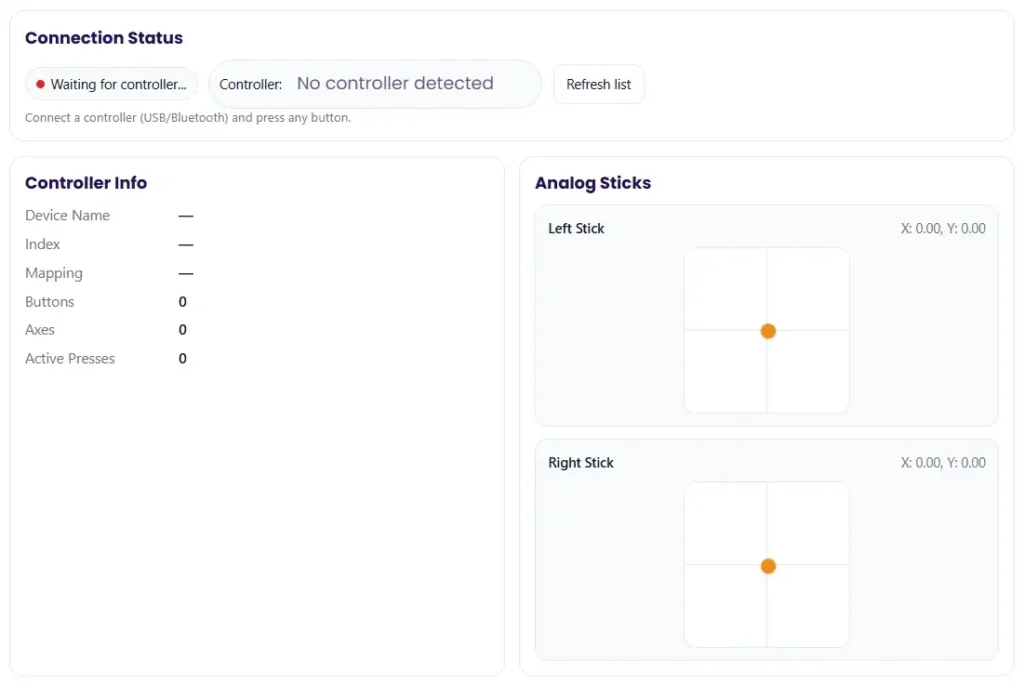
Connection Status
Connect a controller (USB/Bluetooth) and press any button.
Controller Info
Analog Sticks
Buttons Test
Buttons are labeled by index (B0, B1, B2…). Highlighted buttons are currently pressed.
I see this a lot. A game feels wrong, but you are not sure why. The camera moves on its own. A button does nothing. Or a trigger stops before full press. A controller test helps find these problems fast. A gamepad tester shows every input from your controller so you can run a quick button test, stick test, and trigger check.
You can test a controller in a few easy ways. Some people use a browser tool. Others use OS tools for calibration or test inside a game. These tests show how the controller sends XInput or DirectInput signals. They also help spot issues like joystick drift, wrong deadzone, slow response that feels like input lag, stuck buttons, triggers not reaching 100%, D-pad misfires, or a weak Bluetooth controller connection.
This guide helps players using Xbox, PlayStation, Switch, and PC controllers.
Before you start, update your controller firmware or drivers if updates exist.
Key Takeaways
- Use a browser controller test or built in OS tool to check every button and axis. A good gamepad tester shows if each press registers and if the axis reaches full range.
- Check sticks for joystick drift and bad deadzone behavior. Leave the stick at rest and watch the axis. Then move it in slow full circles to see if movement stays smooth.
- Test triggers for full travel. The trigger axis should move from 0% to 100% with no jumps, drops, or sticking near the end.
- Run a quick button test on the D-pad. Each direction should register once. Diagonals should work if the controller supports them.
- If inputs fail, test simple fixes first. Try a different cable or USB port. Reset the Bluetooth controller, update firmware or drivers, and re-pair the device.
- Change one thing at a time. Then run the controller test again. This helps isolate the real cause.
What a Controller Test Really Checks (and What It Can’t Prove)
I’ve run a lot of controller checks, and here’s the simple truth. A controller test shows what signals your gamepad sends to the system. It helps you see if inputs register correctly and if movement values look normal. Most gamepad tester tools show input mapping, axis movement, and how each analog stick or trigger axis responds during use.
But a test only shows symptoms. It cannot always tell the real cause.
What a Controller Test Measures
- Button presses
Confirms if each button registers in the correct input mapping. - Axis movement
Shows the range of an analog stick when you move it. - Stick stability
Detects small movement at rest that may indicate drift. - Deadzone behavior
Helps you see if deadzone settings block small movements. - Trigger response
Tracks the trigger axis from light press to full press. - Connection behavior
May show delays that feel like input problems related to polling rate or connection issues.
What a Controller Test Cannot Fully Prove
- Internal wear inside the controller
- Game specific input handling
- Network lag during online play
- Console or system software bugs
Quick Symptom Guide
- Drift in tester → likely hardware wear or wrong calibration
- Inputs fail only on Bluetooth → likely connectivity issue
- Works in tester but not in a game → likely software or game setting problem
Quick Start: 2-Minute Controller Test (Best for Most People)
Honestly, most controller problems show up in a very quick test. I usually run a fast input test first before touching any settings. This helps me see if the issue comes from the controller, the connection, or the game.
Fast 6-Step Controller Test
- Connect the controller with USB first
Start with a wired connection. USB vs Bluetooth matters because wireless issues can hide the real problem. - Open a tester tool
Run a quick test using a browser.
This shows button presses, stick movement, and trigger input. - Press every button once
Watch if each button lights up correctly in the tester. This confirms the controller mapping works. - Move both sticks slowly
Draw slow circles with each stick. Look for jumps, shaking, or movement when the stick rests. - Test triggers and D-pad
Press triggers slowly to check the full range. Then test every D-pad direction. - Repeat using Bluetooth
Disconnect USB, switch to wireless, and re-pair the controller. Check for intermittent disconnects or missed inputs.
Tip: I usually record a short screen clip of the test. It helps compare results after fixes.
Simple Pass / Fail Check
PASS
- All buttons register
- Sticks move smoothly
- Triggers reach full range
- No disconnects
FAIL
- Missing inputs
- Stick drift or jitter
- Triggers stop early
- Random wireless drops
If something fails, note which button or axis caused it and whether it happened on USB, Bluetooth, or both.
Use an Online Controller Test (Browser-Based) to Check Buttons & Axes
I usually start with a browser gamepad test. It is quick and shows live input from the controller. When the controller connects, the page should show a detected controller with live data. Many sites run this using the browser Gamepad API, which reads controller signals directly from the device.
What to Look For in the Tester
A good tester screen normally shows:
- Live button states
Each button lights up when pressed. This confirms correct button mapping. - Axis values for sticks
The tester shows axis values that move when you push an analog stick. - Trigger range
The trigger axis should move smoothly from 0 to full press. - D-pad input
Each direction should show clearly with no double inputs.
Tip: test the controller both wired and wireless. This helps separate connection issues from hardware problems.
According to the MDN Web Docs explanation of the browser Gamepad API, web pages can read controller button and axis data in real time when the device connects.
If the Controller Is Not Detected
Try these quick checks:
- Refresh the page after plugging the controller in
- Press any button so the browser recognizes the device
- Check browser permissions if input access is blocked
- Try a different browser if the current one lacks support
- Switch controller mode between XInput and DirectInput if available
- Reconnect the Bluetooth controller if wireless signal drops
Test on Your Device Without Any Website (Windows, macOS, Android, iOS)
Sometimes I skip browser tools and check the controller right on the device. Most systems already have ways to see controller input. These built in checks help confirm if buttons, sticks, and triggers send signals correctly.
I usually test wired first if the controller supports it. A cable removes many wireless variables. After that, I try the same test again using Bluetooth to compare behavior.
Another tip I like to follow is recording a baseline test. Test the controller before updates. Then test again after a driver or firmware update. This helps you see if the change actually fixed the problem.
Windows: Verify Inputs and Recalibrate if Needed
Windows includes simple tools inside Windows controller settings.
Steps
- Connect the controller using a USB port or complete Bluetooth pairing.
- Open the Windows search bar and type Game Controllers.
- Click Set up USB Game Controllers.
- Select the controller and open Properties.
- Press buttons and move sticks to see live input feedback.
- If inputs look wrong, run calibration from the settings menu.
Microsoft support guides recommend checking device drivers and connection status if a controller fails to respond.
Quick troubleshooting
- Try a different USB cable or port
- Disconnect and reconnect the controller
- Re-do Bluetooth pairing if wireless fails
- Install the latest driver update from the device manager
Optional: Some PC players also test inputs using Steam Input, which shows controller mapping and button activity.
macOS: Check Bluetooth Pairing and Input Behavior
Mac systems mainly detect controllers through macOS Bluetooth.
Steps
- Open System Settings and go to Bluetooth
- Connect the controller and confirm the device appears
- Remove the device if needed and re-pair it
- Test buttons inside a game or compatible app
Signs of Bluetooth interference
- Random controller disconnect
- Delayed input or missed button presses
- Connection dropping when you move farther away
Keep the controller close to the Mac during testing. Avoid USB hubs or crowded wireless environments.
One more trick I use: test the controller in a second app or game. If it works there, the issue likely comes from the first app’s input settings.
Android / iPhone (iOS): Confirm Pairing and Game Compatibility
Phones and tablets can connect a Bluetooth controller easily, but game support varies.
Steps
- Turn on Bluetooth on the phone
- Put the controller in pairing mode
- Select it from the Bluetooth device list
- Launch a game that supports mobile gamepad support
- Test buttons, sticks, and triggers in gameplay
Official Apple instructions explain how to pair supported controllers with iPhone and iPad devices.
Things to remember:
- Some games ignore certain controller mapping inputs
- Not every mobile game supports full controller control
- Wireless connections may add small latency
If a controller fails in one game, try another title. Sometimes the problem is simply the game’s controller support.
Test Each Controller Part (Buttons, Sticks, Triggers, D-Pad) – What Normal Behavior Looks Like
I usually test every part of the controller one by one. Doing this slowly helps spot problems early. Move sticks slowly, press buttons several times, and repeat each test. Consistent input usually means the hardware works fine.
A good controller test shows stable button input, smooth stick movement, and clean trigger travel. Problems like analog stick drift, bad deadzone, weak trigger range, or a D-pad misfire appear quickly when you test each part carefully.
One thing I always do is write down what fails. Note the axis, direction, and when the problem appears. Sometimes an issue only happens at rest or only during movement.
Button Test (Face Buttons, Bumpers, Stick Click, Share/Options)
I normally start with a simple button test.
Test checklist
- Press each face button slowly
- Press bumpers and stick-click buttons
- Press menu, share, or options buttons
- Repeat each press several times
Expected behavior
- Each press creates a single button input
- The input registers instantly
- Buttons return smoothly after release
Common failure signs
- Sticky button that stays pressed
- Double input when pressing once
- A button not working at all
- Intermittent presses that fail randomly
Quick check
While pressing buttons, gently wiggle the cable if using USB. If input drops, the cable or port may be unstable.
| Symptom | Likely Cause |
| Button does nothing | Worn contact or mapping issue |
| Double input | Weak debounce or dirty contact |
| Sticky button | Debris under the button |
| Random input | Loose cable or connection |
Analog Stick Test (Drift, Dead Zones, Full Range, Jitter)
Analog sticks often show problems like stick drift or axis jitter.
Steps
- Leave the stick at rest and watch the center position.
- Move the stick slowly in a circle.
- Push it fully in each direction.
- Test diagonal inputs carefully.
- Repeat the motion several times.
Expected behavior
- Axis stays stable at the center
- Movement stays smooth during circles
- Full push reaches full axis value
Common failure signs
- Movement while the stick rests (analog stick drift)
- Jumping axis values (axis jitter)
- Movement ignored until a strong push (bad deadzone setting)
- Uneven diagonal movement
Drift triage
- Test inside the OS tool first
- Then test inside a game
- Compare behavior with different deadzone settings
- Try joystick calibration if available
Trigger Test (Analog Travel, 0–100% Range, Sticking Near the End)
Triggers use analog sensors, so they should move smoothly.
If you want to run a focused trigger test, you can use this tool:
Steps
- Press the trigger slowly
- Watch the trigger axis move from zero
- Continue pressing until full travel
- Release slowly and watch the value return
Expected behavior
- Smooth analog trigger movement
- Axis increases evenly during press
- The trigger reaches full value without stopping early
Common failure signs
- Not reaching 100 percent
- Jumping values during press
- Trigger sticking near full press
Next checks
- Compare left and right trigger range
- Run trigger calibration if supported
- Clean around the trigger hinge if debris is visible
A big difference between triggers often points to wear.
D-Pad Test (Missed Directions, Wrong Direction, Diagonals)
The D-pad test helps detect contact problems inside the pad.
Checklist
- Press up, down, left, and right several times
- Watch each direction register once
- Try fast presses and slow presses
- Test diagonal inputs if the game uses them
Expected behavior
- Each press registers clearly
- No extra or opposite directions appear
Common failure signs
- Missed inputs
- Wrong direction triggering
- Delayed input during rapid presses
- D-pad misfire when pressing diagonally
Rhythm test
Press the same direction in a steady rhythm. If one press fails or doubles, the D-pad contacts may be wearing down.
If Your Controller Fails the Test: Fixes in Priority Order (From Easiest to Most Involved)
I usually fix controller problems by changing one thing at a time. That makes troubleshooting much easier. Start with simple checks, then move to software fixes, and finally hardware checks.
And here is the rule I follow: stop when the controller works again. No need to continue once the problem disappears.
Step-by-Step Troubleshooting Workflow
- Switch to a wired connection
Connect the controller with a USB cable first. Wireless issues like interference or weak signals can hide the real problem. - Try another USB cable or port
A damaged USB cable or unstable port can cause missed inputs or disconnects. - Test on another device
Plug the controller into a second PC, console, or phone. This helps isolate whether the problem comes from the controller or the system. - Reconnect the wireless connection
Remove the device and re-pair it. A fresh connection often fixes random disconnects. - Restart the system and controller
A simple controller reset and system restart can clear temporary input errors. - Update controller firmware
Some controllers receive firmware updates that fix input issues or improve connection stability. - Check drivers on PC
If you play on Windows, open device manager and perform a driver reinstall if the controller behaves strangely. - Adjust in-game settings
Sometimes the issue comes from deadzone adjustment or controller sensitivity inside a game. - Inspect and clean the controller
Dust or debris around buttons, sticks, or triggers can affect input. A light exterior cleaning can help. - Consider repair or replacement
If drift, stuck buttons, or failed inputs appear on multiple devices, the controller hardware may be worn out.
Quick Diagnostic Matrix
| Symptom | Most Likely Cause |
| Works wired but fails on Bluetooth | Wireless interference or pairing issue |
| Buttons work in tester but not in game | App or game input settings |
| Stick moves at rest | Controller hardware drift |
| Random disconnects | Cable, port, or connection instability |
| Trigger stops early | Trigger wear or calibration issue |
If problems continue, official support guides may help:
PlayStation controller help, Xbox controller troubleshooting or Nintendo controller support. Testing, isolating variables, and applying fixes step by step usually reveals the real cause.
Common Issues Reddit and Forums Talk About (and How to Diagnose Them Fast)
I read a lot of controller drift Reddit threads and gaming forums. And honestly, many players run into the same few problems. The good news? Most of them are easy to diagnose if you test step by step.
Here are common issues people report and how I usually check them.
Quick Diagnosis List
- Works in menus but not in-game
Quick check: Open the game’s controller settings and look at controller mapping or deadzone values.
Next step: Reset controls or disable tools like Steam Input to see if the game reads the controller directly. - Controller not detected on PC
Quick check: Open a browser or OS input test and see if the controller not detected problem happens there too.
Next step: Reconnect the device or reinstall drivers. Some players use tools like ds4windows for compatibility, but test without extra software first. - Only fails on Bluetooth
Quick check: Plug in a cable and test again.
Next step: Charge the battery, move closer to the device, and re-pair the controller to reduce wireless interference. - Random or intermittent disconnect
Quick check: Gently move the USB cable or test a different port.
Next step: Disable aggressive power saving settings on the device if disconnects keep happening. - Input delay during gameplay
Quick check: Test the controller wired to see if the input delay disappears.
Next step: Check wireless signal strength and reduce nearby Bluetooth devices. - Drift comes and goes
Quick check: Compare the controller on another device.
Next step: If the issue appears everywhere, dust or wear may be causing stick drift.
Quick Reporting Phrase
If the post spreads clear misinformation, you can report it with a short note like this:
“Possible misinformation. Image appears reused from another source based on reverse image search results.”
A few minutes of verification usually reveals whether the content is real or misleading.
Quick Tip
I usually run a short recording of the test and save it. Later, I can compare it with new results after fixes.
You can also find more troubleshooting guides and tools on CyberFanatix.
Conclusion: Confirm the Problem, Isolate the Cause, Re-Test After Each Fix
Controller problems usually become clear once you test them step by step. Good controller troubleshooting focuses on one simple rule: isolate variables and check each change carefully. Many issues like drift, bad calibration, or connection problems appear quickly when you run a proper test.
FAQs
How do I test my controller on PC?
I usually run a quick Windows gamepad test first. Plug the controller in and open a browser tester or the OS controller tool. Press buttons and move sticks to confirm the controller detected input works.
Steps:
Open a tester like the controller test page
Check buttons and axis movement
Compare wired vs Bluetooth behavior.
How do I know if my analog stick has drift?
Stick drift happens when the stick moves even at rest.
Quick joystick drift test:
Leave the stick still and watch the axis value.
If it moves without touching it, drift exists.
Then test in both the OS tool and a game. Sometimes a small deadzone setting hides minor drift.
Why is my controller detected but some buttons don’t work?
This usually comes from a button mapping problem.
Possible causes:
Game settings override inputs
XInput and DirectInput mode mismatch
Incorrect controller profile
Partial hardware failure
Try a remap test or launch another game. If the buttons work there, the first game likely caused the problem.
How do I test controller triggers to see if they reach 100%?
Run a quick trigger test and press the trigger slowly.
Steps:
Watch the analog trigger range while pressing
Confirm it reaches full value and returns to zero
If the trigger stops early or sticks near the end, debris or wear may be causing not reaching 100.
How do I test the D-pad for missed or wrong inputs?
Run a simple D-pad test.
Checklist:
Press each direction repeatedly
Check for missed inputs
Watch for wrong direction signals
Try diagonals if supported
I also press in a steady rhythm. Intermittent contacts often appear that way.
Why does my controller work wired but not on Bluetooth?
This often happens because of Bluetooth interference or weak pairing.
Quick fixes:
Re-pair the controller
Move closer to the device
Remove other wireless devices
Charge or replace batteries
Wireless signal problems often cause latency or random wireless disconnect during gameplay.
When should I stop troubleshooting and consider repair or replacement?
I usually stop testing when these signs appear:
Hardware failure across multiple devices
Severe stick drift or jitter everywhere
Buttons fail even after resets
Trigger axis never reaches full range
Visible physical damage
At that point, check the manufacturer support page for controller repair, replacement, or possible warranty options.