
Controller Touchpad Test
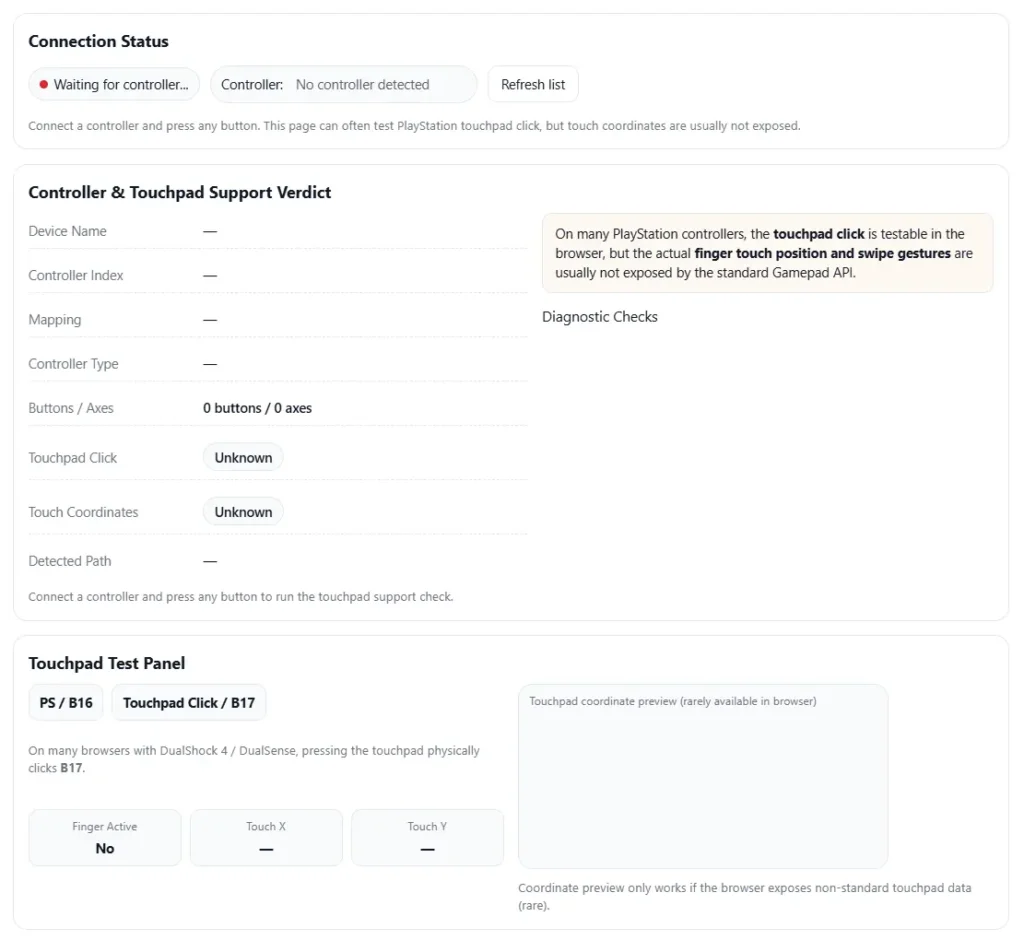
Test controller touchpad support online in your browser. This tool checks touchpad click input (commonly available on PlayStation controllers) and detects whether touch coordinates are exposed (rare).
Connection Status
Connect a controller and press any button. This page can often test PlayStation touchpad click, but touch coordinates are usually not exposed.
Controller & Touchpad Support Verdict
Connect a controller and press any button to run the touchpad support check.
Touchpad Test Panel
On many browsers with DualShock 4 / DualSense, pressing the touchpad physically clicks B17.
Coordinate preview only works if the browser exposes non-standard touchpad data (rare).
Live Controller Input (Reference)
This confirms the controller is connected even if touch coordinates are not available.
Raw Touchpad Diagnostic Summary
No data yet.
I’ve seen this happen a lot. The controller touchpad stops responding, or it moves on its own. A touchpad test controller check helps confirm what is going on. It shows if the PS5 DualSense touchpad, PS4 DualShock 4 touchpad, or a Steam Input touchpad actually detects finger input. It also helps spot problems like no input, ghost touches, lag, dead zones, or click issues.
I usually start with a quick trackpad test online. Then I check system settings, clean the surface, and try simple fixes. This works on PS5, PS4, Windows, and Steam setups. If the controller touchpad not working problem still shows up after these checks, it could mean the touchpad hardware itself is failing.
Key Points to Remember
- I start with an online touchpad test controller tool. It shows if the touchpad sends input at all.
- I check simple software issues next. Wrong Steam Input touchpad settings, old firmware, or Bluetooth problems can block input.
- I test touch and click separately. Touch sensing and the touchpad click button fail for different reasons.
- I clean the surface and reset the controller before blaming hardware. Dirt or oil can confuse the sensor.
- On PC, I confirm Windows detects the controller as an HID device. Then I test it in more than one app or game.
- If I see ghost touches, I look for moisture, dirty surfaces, or unstable wireless connections.
- If the problem stays after resets and firmware updates, the touchpad hardware may need repair or replacement.
What a Controller Touchpad Test Really Checks (and What It Doesn’t)
I see people mix this up a lot. A controller touchpad actually has two parts. One part reads finger movement using capacitive touch. The other part is the touchpad click button you press down. Some software also adds multi-touch and gesture support on top of that.
A simple tester checks if the controller sends touch signals through the HID device layer. But here’s the catch. A test can pass in one app but fail in a game. That often happens because of input mapping layers like Steam Input. Steam may remap the touchpad differently than the test tool. The official overview explains this mapping system.
Quick rule I use:
If click works but touch does not, or touch works but click does not, the failure point is usually different hardware or mapping paths.
What a Touchpad Test Checks
- Detects capacitive touch movement on the surface
- Confirms the touchpad click button works
- Shows multi-touch if the software supports it
- Verifies the controller reports input through the HID device
What It Doesn’t Check
- Game specific input mapping or Steam profiles
- Custom gesture features inside certain games
- Software conflicts from remappers or overlays
- Hardware wear that appears only during gameplay
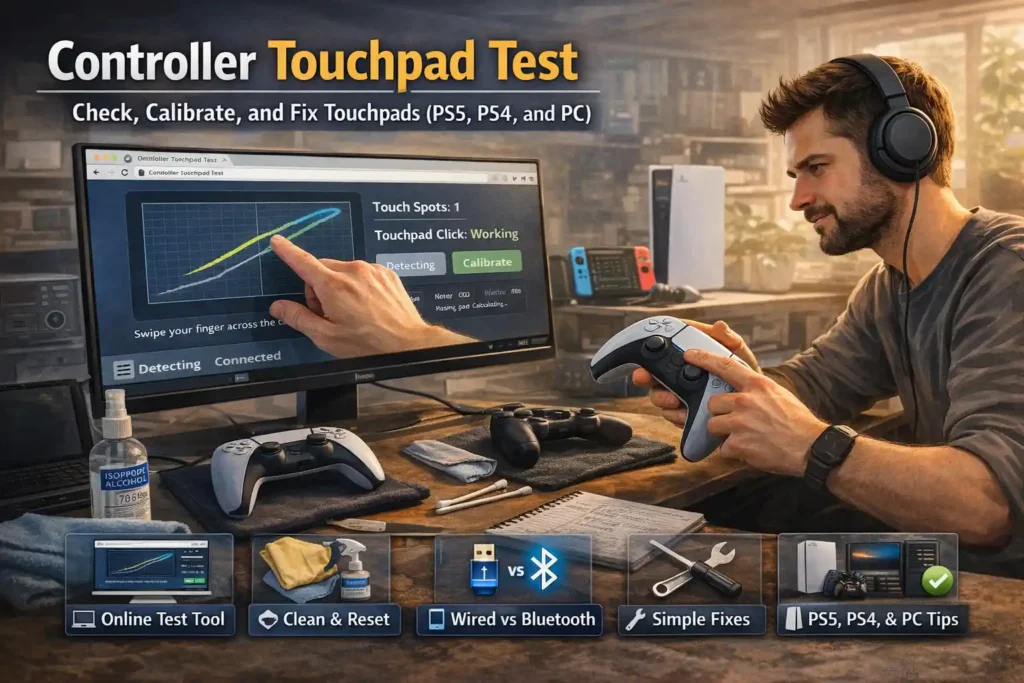
Quick 60 Second Controller Touchpad Test (Fast Check)
I like doing a fast check first. It saves time and quickly shows if the problem is detection, connection, or a wrong mapping profile.
- Plug the controller with a USB cable first.
Always test wired vs Bluetooth at the start. Wired removes wireless problems and reduces input latency. - Open an online controller tester.
Use a simple online touchpad test here. - Slide your finger across the touchpad.
Watch if the controller tester shows movement.
No response usually means the touch sensor is not detected. - Press the touchpad down.
Check if the touchpad click registers. Touch and click work through different parts. - Switch to Bluetooth and test again.
If it works wired but fails wireless, the issue could be connection or interference. - Check Steam or controller settings.
Look at the active mapping profile. A wrong Steam layout can block touch input. - Open a game or console menu that uses the touchpad.
Confirm the input works in a real game environment.
Stop here rule:
If the touchpad shows no detection even when wired, the issue usually points to firmware or hardware. For deeper troubleshooting, PlayStation support also lists controller check.
Tools to Test a Controller Touchpad (Browser, PC Apps, Console Menus)
I’ve learned one thing the hard way. Using just one test tool can fool you. One tool might show the touchpad working, while another shows a mapping problem. So I usually run at least two tools before deciding anything.
Many controllers connect to Windows as an HID device. That means the system can read basic input even if the game setup is wrong. Because of that, different tools help check different layers
| Tool | What it verifies | Best for | Limitations |
| Browser gamepad tester | Basic touch detection and touchpad click input | Quick checks in any browser | Does not show game mapping issues |
| Steam controller settings | Input mapping and touchpad behavior inside Steam | Fixing Steam controller settings or layout problems | Only applies to Steam games |
| Windows controller panel | Basic input through the HID layer | Confirming DualSense Windows or other controllers are detected | Limited touchpad detail |
| DS4 Windows (third party tool) | Advanced mapping and diagnostics for DualShock | Testing custom profiles and controller diagnostics | Third party software, not official |
| PS4 or PS5 console menus | Basic hardware response inside the system | Confirming touchpad works on the console | Limited diagnostics data |
If you see strange behavior like input dropouts, Bluetooth connection problems can also cause it. Microsoft lists common wireless fixes.
Honestly, I try two different tools minimum before assuming the controller is broken. It avoids a lot of false alarms.
Reading Touchpad Test Results: What Common Failures Mean
I usually look at the symptom first. The behavior tells a lot about the cause. A quick touchpad test controller check often shows if the problem is software, dirt, or real hardware damage.
| Symptom | Likely cause | What to try first |
| No touch detection at all | Hardware fault, firmware issue, or broken sensor | Test wired first. Reset the controller. Update firmware if available. |
| Touch works only sometimes | Intermittent input from loose connection or wireless instability | Switch from Bluetooth to USB. Try another cable or USB port. |
| Ghost touch or random cursor movement | Dirt, moisture, or contamination on the touchpad surface | Clean the touchpad gently. Dry your hands. Retest after cleaning. |
| Click works but touch does not | Capacitive sensor problem or internal ribbon issue | Run another touchpad test. If click works but touch fails, suspect the sensor hardware. |
| Touch works but click does not | Physical button wear or mechanical switch problem | Press the pad in different spots. If no click registers, the button may be worn. |
| Works in tester but not in game | Input mapping conflict or wrong controller profile | Check Steam or game controller settings. Reset the layout to default. |
One small trick helps a lot. Always do a controlled retest.
Use the same cable, same USB port, and the same app when testing again. Changing too many things at once makes the results confusing.
Fix Simple Things First: Cleaning, Reset, and Connection Checks
I usually try the safe fixes first. A lot of touchpad problems come from dirt, moisture, or connection issues. These checks take only a few minutes.
Step by step checklist
- Wash and dry your hands.
Oil or sweat can confuse the touch sensor. - Clean the touchpad surface.
Wipe it gently with a soft cloth. If needed, use a tiny amount of isopropyl alcohol that is safe for electronics. - Remove moisture or dust.
Dirt or water can cause ghost touches or random movement. - Restart or do a controller reset.
A quick controller reset clears temporary glitches. - Use a different cable.
Try a proper USB data cable. Some cables only charge and do not send input data. - Change the USB port.
A bad port can cause unstable input or connection drops. - Avoid USB hubs.
Connect the controller directly to the system to reduce signal problems. - Reconnect Bluetooth pairing.
Delete the device and repeat the pairing process. This helps remove wireless interference problems.
What not to do
- Do not pry open the touchpad surface
- Do not soak the controller in liquid
- Do not scrub with rough or abrasive pads
If you want safe repair guidance, iFixit shows general controller cleaning practices.
Platform Specific Controller Touchpad Troubleshooting
I’ve noticed something interesting over time. A touchpad problem often depends on the platform you are using. The cause on a PS5, PS4, or PC can be completely different. Sometimes it is system settings. Sometimes it is a controller configuration profile. And other times it is a connection problem between Bluetooth vs USB.
So I usually test the touchpad on the platform itself first. Then I check settings, firmware, and mapping layers before assuming hardware damage.
PS5 DualSense Touchpad Test and Fix Steps
The DualSense controller usually works well out of the box. But settings, pairing issues, or outdated DualSense firmware can block the touchpad.
Here are the steps I normally try.
- Open PS5 accessories settings and check the connected wireless controller
- Confirm the controller firmware is updated
- Test the touchpad button inside the PS5 menu or a game that uses it
- Turn the controller off and reconnect it to the console
- Re pair the controller if the system does not detect input properly
- Try using the controller in wired mode with a USB cable
Testing in wired mode helps isolate wireless issues. If the touchpad works wired but fails on Bluetooth, the issue may come from interference or connection instability.
One common pitfall I see is people testing only in one game. I always test in a second game or menu to confirm the problem.
PS4 DualShock 4 Touchpad Test and Fix Steps
The DualShock 4 touchpad can fail because of pairing issues or cable problems. The PS4 controller also has a hidden DualShock 4 reset button that many people miss.
I usually follow this order.
- Turn off the PS4 controller
- Press the small DualShock 4 reset button on the back using a pin
- Connect the controller to the PS4 using a micro USB data cable
- Turn the controller on and allow the console to detect it again
- Test the PS4 controller touchpad in the console menu or a game
- If needed, remove the controller from Bluetooth devices and repeat pairing
A common pitfall here is the cable. Many older micro USB cables are charge only. They power the controller but do not send input data. That makes the touchpad appear broken even though the hardware is fine.
I usually test with another cable just to rule that out.
And again, test in a second game if possible. Sometimes a game profile disables touchpad actions.
PC Windows and Steam Touchpad Test and Fix Steps
PC setups add another layer because of drivers and software mapping. A controller might work through the Windows HID layer but still fail inside a game because of Steam Input settings.
So I start with the basic checks first.
Quick checklist I use
- Connect the controller with USB first instead of Bluetooth
- Confirm Windows detects the controller as a Windows HID device
- Open Steam and check the controller layout in Steam settings
- Reset to the default Steam configuration if needed
- Disable other remapping software if it is running
- Test the touchpad outside Steam using a browser tool
- Then test again inside a game
One trick that helps is using a known good baseline. I disable community profiles and use the default Steam Input layout first. That removes extra variables.
A common pitfall on PC is conflicting tools. If two remapping apps try to control the same controller, the touchpad can stop responding or send wrong inputs.
And one last thing I always do. I test the controller in another app or game. If it works there, the issue is usually software or game specific mapping.
Deeper Controller Diagnostics When Basic Tests Are Not Clear
Sometimes the simple tests do not show the real problem. I have seen touchpads pass one test and fail another. When that happens, I try a few deeper checks to reproduce the issue and isolate variables.
Here are the steps I usually follow.
- Test the controller on another device
Try a different PC or console. If the same issue appears again, the controller itself may be the cause. - Try a second controller on the same system
This helps confirm if the system setup or software causes the problem. - Check for wireless interference
Nearby Bluetooth devices, adapters, or crowded USB hubs can create signal interference. - Repeat the exact same test conditions
Use the same cable, same port, and same app. This helps reproduce the issue consistently. - Watch for signs of sensor failure
If touch detection disappears randomly or never returns, the touch sensor may have a hardware fault.
If you feel comfortable going further
- Test with another USB cable and port
- Restart the device and repeat the touchpad test again
One last tip. Document your findings.
Write down the wired test result, which games you tested, and when the issue happens. This helps if you contact warranty support.
If you want broader testing, you can also run related controller diagnostics.
Other Controller Tests That Help Find the Real Problem
I’ve seen people focus only on the touchpad. But sometimes the issue comes from the controller connection or firmware. When that happens, other sensors also act strange. That is why I usually run a few extra controller diagnostics before blaming the touchpad itself.
These quick checks help confirm input stability across the whole controller.
Useful controller tests
- Vibration test
Checks if the rumble motors respond correctly. If vibration fails or feels unstable, the controller may have connection or firmware problems.
You can run a controller vibration strength test. - Gyro test
Tests motion sensors that detect controller rotation. A gyro test can reveal delayed input or signal drop issues.
Try the controller gyro test. - Accelerometer test
Checks motion detection when you tilt or move the controller. If this sensor also fails, the issue may affect multiple inputs.
Quick decision tip
If several tests fail together, the problem usually comes from connection or firmware.
If only the touchpad fails, the cause is often a touchpad hardware issue.
Reddit and Forum Insights: What Actually Fixes Touchpad Problems (and What Usually Doesn’t)
I read a lot of community reports on forums and Reddit when touchpad problems show up. The same patterns appear again and again. Some fixes work often. Others waste time.
Here are the things people report most.
Most reported fixes
- Switch the USB cable
Many users discover a simple cable issue. Charge only cables power the controller but do not send input data. - Reset or change Steam configuration
A wrong Steam configuration or controller layout can block touch input even when the hardware works. - Clean the touchpad surface
Oil, sweat, or dust can cause ghost touches and strange movement. - Reconnect Bluetooth
Some users fix the problem by removing the controller and pairing it again. Wireless interference sometimes breaks input. - Test another game
Touchpad works in the tester but fails in one game. That usually means the game mapping disables it.
Common myths
- Restarting the game repeatedly fixes hardware problems
- Pressing harder on the touchpad repairs sensor issues
- Updating random drivers always solves the problem
One thing I always suggest. Test one change at a time. If the issue gets worse, revert the step and try another.
If you want to understand how Reddit handles help discussions and reports, their help center explains the platform.
When to Repair, Replace, or Request RMA
I try simple fixes first. But sometimes it is smarter to stop troubleshooting and move to repair, replacement, or an RMA. If the touchpad keeps failing after basic checks, the issue often points to hardware damage.
Here is the quick way I decide.
Stop troubleshooting if you see these signs
- No touch detection even when the controller is connected with USB
- The problem stays after reset and firmware checks
- The issue appears on more than one PC or console
- Visible cracks, dents, or other hardware damage on the touchpad
- Signs of liquid damage or moisture inside the controller
If your controller is still covered by a warranty, requesting an RMA usually makes more sense than opening the device yourself.
What to tell support
- Controller serial number
- Current firmware version
- Wired test result
- Games or apps tested
- Steps already tried
Final Thoughts on Testing and Fixing a Controller Touchpad
I usually keep the process simple. First run a touchpad test controller check to see if input appears at all. Then try to separate mapping problems from real hardware issues. Many touchpad problems come from settings, firmware, or connection glitches. Only after testing across different apps or games should you assume a hardware fault.
FAQ
How do I test my controller touchpad online?
Connect the controller to your PC. I usually start wired first.
Open a simple online touchpad test or controller tester.
Swipe your finger across the touchpad.
Press the touchpad click.
If results look strange, test in another browser or app.
Why does my touchpad work in a test tool but not in my game?
This usually means a mapping problem. The test tool reads raw input, but games may use different profiles.
Things I check first:
Reset the Steam Input or controller layout
Disable other remapping tools
Check in game bindings for touchpad actions
I also test in another game or the Steam overlay menu.
What causes ghost touches or random touchpad inputs?
Common causes I see:
Dirt, oil, or contamination on the touch surface
Sweat or moisture on the controller
Wireless Bluetooth interference
Worn touch sensors causing intermittent input
Quick fixes:
Clean the surface
Dry hands
Test wired
Re pair Bluetooth
It also helps to note when the issue happens.
Does the DualSense or DualShock touchpad need calibration?
Most controllers do not offer manual calibration for the touchpad like a phone screen.
What I usually try instead:
Check for a firmware update
Perform a controller reset
Review controller settings or mapping on PC
If the problem appears in only one game, the issue is likely game mapping.
Can a bad USB cable cause touchpad test failures on PC?
Yes, it happens a lot.
Some cables are charge only. They power the controller but send no input data.
What I normally try:
Switch to a proper USB data cable
Avoid USB hubs
Test another USB port
After changing the cable, run the wired test again.
When should I stop troubleshooting and replace the controller?
I usually stop testing when these signs appear:
Touchpad fails wired across multiple devices
Reset and updates do not help
Visible hardware fault or liquid damage
If the controller still has a warranty, request an RMA first.
I also record a short video and list the tests I tried for support.