
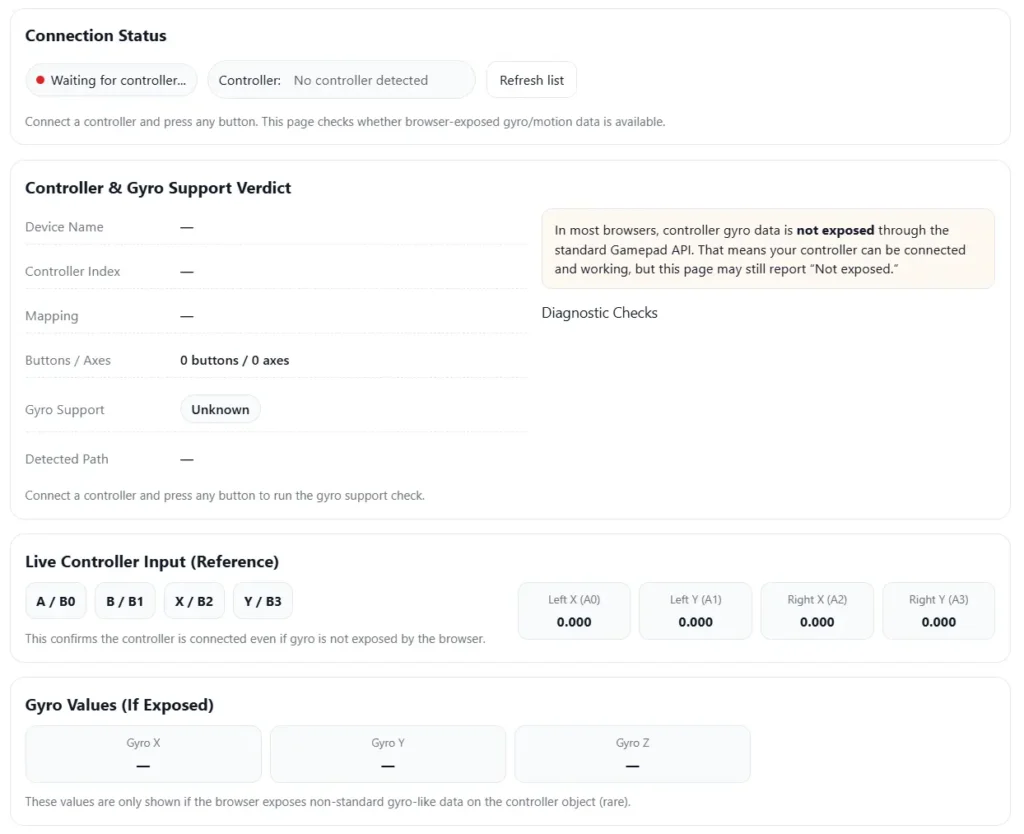
Controller Gyro Test
Check whether your controller’s gyroscope (gyro) data is exposed in the browser. This page runs a Gamepad API-based gyro support diagnostic and shows live controller input.
Connection Status
Connect a controller and press any button. This page checks whether browser-exposed gyro/motion data is available.
Controller & Gyro Support Verdict
Connect a controller and press any button to run the gyro support check.
Live Controller Input (Reference)
This confirms the controller is connected even if gyro is not exposed by the browser.
Gyro Values (If Exposed)
These values are only shown if the browser exposes non-standard gyro-like data on the controller object (rare).
Raw Gyro Diagnostic Summary
No data yet.
I’ve seen this happen a lot. You move the controller, and the aim feels shaky. Or the camera moves even when you hold still. That’s where a controller gyro test helps.
A gyroscope inside controllers like PS5 DualSense, Nintendo Switch Pro Controller, Joy-Con, or a PC controller tracks motion controls and rotation. The test checks problems like drift, jitter, slow response, or latency. Sometimes the cause is the gyro sensor. Other times it could be firmware, Bluetooth interference, or game settings. Running a quick calibration and test helps you see where the issue actually comes from.
Key Points From a Controller Gyro Test
- A controller gyro test checks how the gyroscope reports rotation during motion controls. It tracks yaw, pitch, and roll when you move the controller.
- I usually place the controller on a flat surface first. Then I rotate it slowly. This helps spot drift, jitter, small dead zones, or wrong axis mapping.
- Sometimes the gyro looks bad, but the problem comes from another sensor. So I compare the gyroscope results with accelerometer data and stick movement.
- I always try calibration and a firmware update first. Many controllers fix motion errors after that step.
- Bluetooth or USB interference can add noise to motion data. Testing again after changing the connection often clears the issue.
- If the same problem shows on different games or devices, the sensor may be failing. At that point, it makes sense to record results and think about repair or replacement.
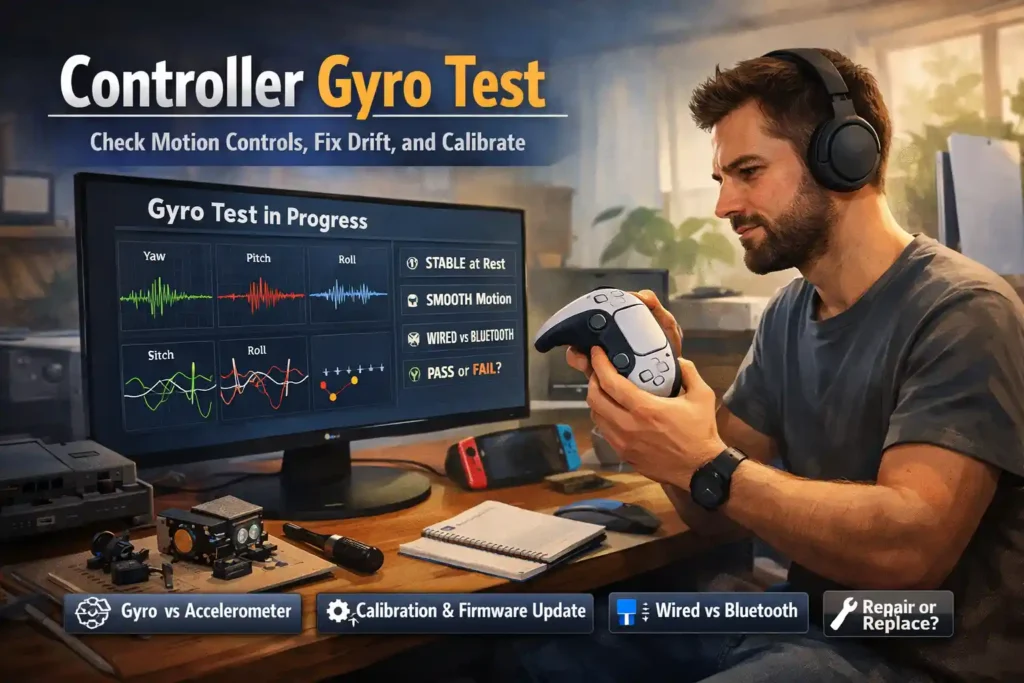
What a Gyro Sensor Does in a Controller (and What a Gyro Test Measures)
I’ve checked a lot of controllers, and this part confuses people. A gyroscope tracks how the controller rotates. It measures yaw, pitch, and roll, which means turning left or right, tilting up or down, and rolling sideways. Games use this data for motion aiming, steering, or camera movement.
But the gyro only tracks rotation. The accelerometer tracks tilt and movement in a straight line. That’s why people compare gyroscope vs accelerometer when motion controls feel strange. If you want to see how the other sensor behaves, you can run an accelerometer test here.
A good gyro shows stability at rest. When the controller sits still, the values should stay steady. When you rotate slowly, the change in rotational velocity should look smooth without spikes or sensor noise. If the motion jumps or moves by itself, something is off.
What the gyro does
- Tracks rotation speed and direction
- Measures yaw, pitch, and roll during motion controls
- Helps with gyro aiming, steering, and camera movement
What the gyro does not do
- It does not measure straight movement
- It does not track position in space
- It does not replace the accelerometer
Common symptom → likely cause
- Drift at rest → possible sensor bias or bad calibration
- Jitter while moving → sensor noise or wireless interference
- Laggy motion → connection delay or software smoothing
If you want to see how controllers are built inside, teardown guides show the sensor layout here.
Common Signs Your Controller Gyro Needs Testing
I see this a lot when motion controls start acting strange. Sometimes the controller works fine. Then suddenly the aim feels weird or shaky. That usually means it’s time to check for gyro drift or sensor noise.
Signs your controller gyro may need testing
- The camera slowly moves even when the controller sits still. That’s classic gyro drift.
- Motion aiming feels off. You tilt slightly, but the game moves too much or too little.
- Small jitter or micro shaking appears while aiming.
- Your crosshair feels unstable or shows shaky aim during slow movements.
- Turning the controller left moves the camera the wrong way. That’s axis inversion.
- Motion steering feels too strong or too weak because of bad sensitivity settings.
- The game ignores tiny movements because the dead zone is too large.
- Motion works fine on USB but breaks on Bluetooth.
- The issue only shows up in one game profile.
Before you run a gyro test
Try these quick rule outs first:
- Turn aim assist off and test again
- Reset in game motion settings
- Load a different controller profile
- Try another game that supports motion controls
If the same problem still shows up, the gyro sensor may need testing. Nintendo also shares controller help guides here.
How to Do a Controller Gyro Test (Step by Step)
I usually keep this simple. The goal is to check how the gyroscope reacts when the controller moves and when it stays still. A good test shows stable values at rest and smooth tracking during motion.
Quick setup before testing
- Use a flat surface like a desk for the starting position
- Remove controller cases or accessories
- Make sure the Bluetooth signal or USB cable connection is stable
- Check for a firmware update if available
- Keep the same controller settings and sensitivity during the test
Steps to test the gyro
- Start with a baseline at rest
Place the controller flat and do nothing for a few seconds.
Expected result: values stay stable with no movement. This helps with the drift check. - Test slow rotations
Rotate the controller slowly left and right to test yaw pitch roll.
Expected result: smooth motion without sudden spikes. - Check motion smoothness
Move the controller slowly in different directions.
Expected result: steady smooth tracking without jumps. - Repeat the same movements again
Do the same rotation pattern two or three times.
Expected result: similar readings each time. That shows repeatability. - Compare wired vs Bluetooth
Test once using a USB cable, then again with wired vs Bluetooth connection.
Expected result: motion should feel the same in both tests. - Try another game or device
If possible, test the controller on another system or game.
Expected result: similar behavior across devices.
For extra troubleshooting, official controller help is also available here.
Simple test log you can record
- Device:
- Connection type (USB or Bluetooth):
- Game or test app:
- Symptoms noticed:
- Pass or fail result:
Test Setup: Reduce Variables Before You Blame the Sensor
Before blaming the gyro sensor, I try to remove outside factors first.
Surface
- Use a flat and stable desk
- Avoid soft surfaces like beds or cushions
Connection
- Use a good USB cable if testing wired
- Keep the controller close to the device for a stronger Bluetooth signal
- Move other wireless devices away to reduce interference
Software
- Close controller remapping tools running in the background
- Keep the same controller settings and sensitivity
- Install any available firmware update
One important rule I follow: change one thing at a time.
If you change five settings at once, it’s hard to know what actually fixed the issue.
What Results Mean: Pass or Fail Patterns You Can Recognize
After testing, certain patterns show what the problem might be.
- Drift at rest
The controller moves even when still.
Likely cause: sensor bias or missing calibration.
Next step: recalibrate and test again. - Jitter or shaking motion
Small random spikes appear while moving.
Likely cause: sensor noise or wireless interference.
Next step: try a wired connection. - Wrong movement direction
Tilting left moves the camera in another direction.
Likely cause: incorrect axis mapping.
Next step: check game settings or Steam layout. - Delayed response
Motion feels slow or delayed.
Likely cause: connection latency or input polling delay.
Next step: test with USB and close background software. - Different results wired vs wireless
Motion works fine with cable but not Bluetooth.
Likely cause: wireless interference or adapter issues.
Seeing these patterns helps narrow the problem before replacing the controller.
Compare With Other Controller Tests to Find the Real Problem
I’ve seen people blame the gyro right away. But sometimes the issue comes from another sensor. A controller has several input systems working together. If one acts strange, the whole motion control can feel broken.
So I like to run a few controller diagnostics before deciding anything. Testing the accelerometer, vibration, and touchpad helps isolate issue sources. Each test checks a different part of the controller.
And if rumble feels strange, try the controller vibration strength test.
Quick decision idea
- If gyro fails but accelerometer passes → possible gyro calibration issue
- If gyro and accelerometer both fail → sensor or firmware problem
- If gyro only shakes when rumble starts → vibration interference
- If motion moves during swipes or taps → possible touchpad input conflict
Gyro vs Accelerometer: When to Run Each Test
People mix these two sensors a lot. They sound similar but measure different motion.
Gyroscope
- Measures rotation rate
- Tracks yaw, pitch, and roll movement
- Used for gyro aim and camera rotation
Accelerometer
- Detects tilt controls and linear acceleration
- Measures movement direction or gravity tilt
- Often works together with the gyro using sensor fusion
Simple examples
- Tilt to steer in racing games
Main sensor: accelerometer - Motion aiming in shooters
Main sensor: gyroscope
If one sensor behaves wrong, the game may feel broken even though the other one works fine.
When Vibration or Haptics Make Gyro Feel Shaky
Sometimes the gyro is fine. But haptics or rumble makes the controller shake in your hands. That movement can look like perceived jitter during motion aiming.
I’ve noticed this a few times. The player thinks the gyro sensor is noisy, but it’s just vibration moving the controller.
Ways to check it:
- Turn off vibration or haptics in the game settings
- Run the gyro test again
- Hold the controller more firmly during the test
- Try different rumble strengths and see if the shaking changes
If the problem only shows when rumble starts, it’s likely vibration interference rather than a sensor issue.
Touchpad or Extra Inputs: Rare Conflicts Worth Checking (DualSense / DS4)
This one is rare, but I’ve seen it happen. Some games map camera movement to the touchpad or other extra inputs. When that mapping overlaps with motion controls, the camera may move unexpectedly.
Things I usually check:
- Look for touchpad mapping inside the game settings
- Check for any input remap tools running in the background
- Review the controller profile used by the game
- If playing on PC, inspect the Steam Input layout
Quick test:
- Reset the controller layout to default settings
- Run the motion test again
If you want to confirm touchpad input behavior, you can try a touchpad check here.
Fixes: Calibration, Firmware, and Connection Tweaks (In Priority Order)
I usually fix gyro problems step by step. Small changes often solve the issue. After each step, retest gyro to see if the motion improves.
- Check for a firmware update
Connect the controller to your console or PC and install any available firmware update. Updates sometimes fix motion sensor bugs.
After updating, retest gyro. - Perform a controller reset
A simple controller reset clears temporary errors in the motion system. Use the reset option in system settings or the hardware reset button if the controller has one.
Then retest gyro. - Recalibrate motion controls
Open in game motion settings or run Steam Input calibration on PC. This helps the system recalibrate the gyro baseline and remove drift.
After calibration, retest gyro. - Test USB vs Bluetooth connection
Try the controller with a cable. Then compare USB vs Bluetooth behavior. Wireless signals sometimes add delay or noise.
After switching connection type, retest gyro. - Change USB port or cable
Some cables carry power but not clean data. Switching the USB port or cable can remove input problems.
After changing hardware, retest gyro. - Reduce wireless interference
Move away from routers or other wireless devices that may cause interference with Bluetooth signals.
Then retest gyro. - Try another device or game
Connect the controller to a different system and run the same motion test.
If the issue stays the same everywhere, retest gyro again to confirm.
When to stop troubleshooting
- The same drift or jitter appears on multiple devices
- Calibration and firmware changes do nothing
- The issue happens in every game and test tool
At that point, the controller may have a hardware problem. For PC motion setup help, Steam Input guides are available here.
Documenting Results for Warranty, Repairs, or Resale (Simple Test Report Template)
When a controller gyro fails, I like to keep a short test report. It helps during a warranty claim, repair request, or even resale. Clear notes show the problem and make the issue easier to verify.
Simple troubleshooting log template
- Device / controller model:
- Connection type: wired or wireless
- Game or test tool used:
- Problem noticed: drift, jitter, latency
- Reproducible steps: how the issue appears
- Result: pass or fail
Evidence that helps
- Screenshot of the gyro test results
- Short video showing the issue
- Notes from your troubleshooting log
One minute video checklist
- Start with the controller at rest
- Rotate slowly on each axis
- Show the moment drift appears
Basic warranty guidance is available here.
Recommended Controller Test Tools (What to Use and Why)
I usually start with a quick controller test tool before changing settings or opening the controller. Different tools help with different parts of controller diagnostics.
Useful controller testing tools
- CyberFanatix controller test tools
A simple browser based controller test that runs in your browser. Good for quick checks and basic input tester diagnostics. - Controller gyro test
Best for checking motion tracking, drift, and rotation behavior. Helps confirm if the gyroscope reacts smoothly. - Accelerometer, vibration, and touchpad tests
These help when you need deeper diagnostics. They check other controller systems that may affect motion controls.
Tool selection tips
- Use a browser test for fast checks.
- Use multiple tests when doing full troubleshooting.
Conclusion: Get Reliable Motion Controls by Testing, Isolating, and Retesting
I usually solve motion problems by going step by step. First I run a controller gyro test to see how the sensor behaves. Then I compare results with other sensors if needed. After that I try calibration, connection changes, or other fixes. If the issue stays, I write down the results to troubleshoot the problem clearly.
FAQs
How do I test my controller’s gyro online?
I usually run a quick browser gyro test to check motion sensors. It shows if the controller reports rotation correctly.
Steps:
Open a test controller gyro online tool
Connect your controller
Rotate slowly on each axis and check stability at rest
Try both wired and Bluetooth for comparison.
Why is my gyro drifting even when the controller is still?
Gyro drift often comes from small sensor bias or bad calibration.
Possible causes:
Missing calibration
Wireless interference
Old controller firmware
Game motion settings
Fix one thing at a time and retest.
Also try another game to rule out game configuration problems.
Does the accelerometer affect gyro aiming?
Yes, sometimes it does. Many motion systems use sensor fusion, which combines accelerometer and gyro aim data.
If the accelerometer sends bad tilt data, aiming can feel unstable.
Why does my gyro feel worse on Bluetooth than on USB?
Wireless signals sometimes add input latency or motion noise. Bluetooth interference can affect the wireless connection.
Things to try:
Move closer to the receiver
Turn off nearby Bluetooth devices
Close controller remapping tools
Compare results using a USB test
You can also test the controller on another device.
How do I calibrate gyro controls for better aim?
I start with basic gyro calibration steps.
Steps:
Reset motion settings
Adjust sensitivity slowly
Change smoothing if available
Set a small dead zone if needed
Test movement slowly after each change.
Save a baseline profile before adjusting further.
When should I replace my controller instead of troubleshooting?
Replacement makes sense when:
Motion fails on multiple devices
Severe jitter appears at rest
Firmware updates and resets do nothing
Physical damage or liquid exposure exists
These signs usually mean hardware failure.
Keep a test log if you plan a controller repair or warranty claim.