
Xbox Controller Test
Test your Xbox controller online with live button, trigger, D-pad, and analog stick input detection in the browser.
Connection Status
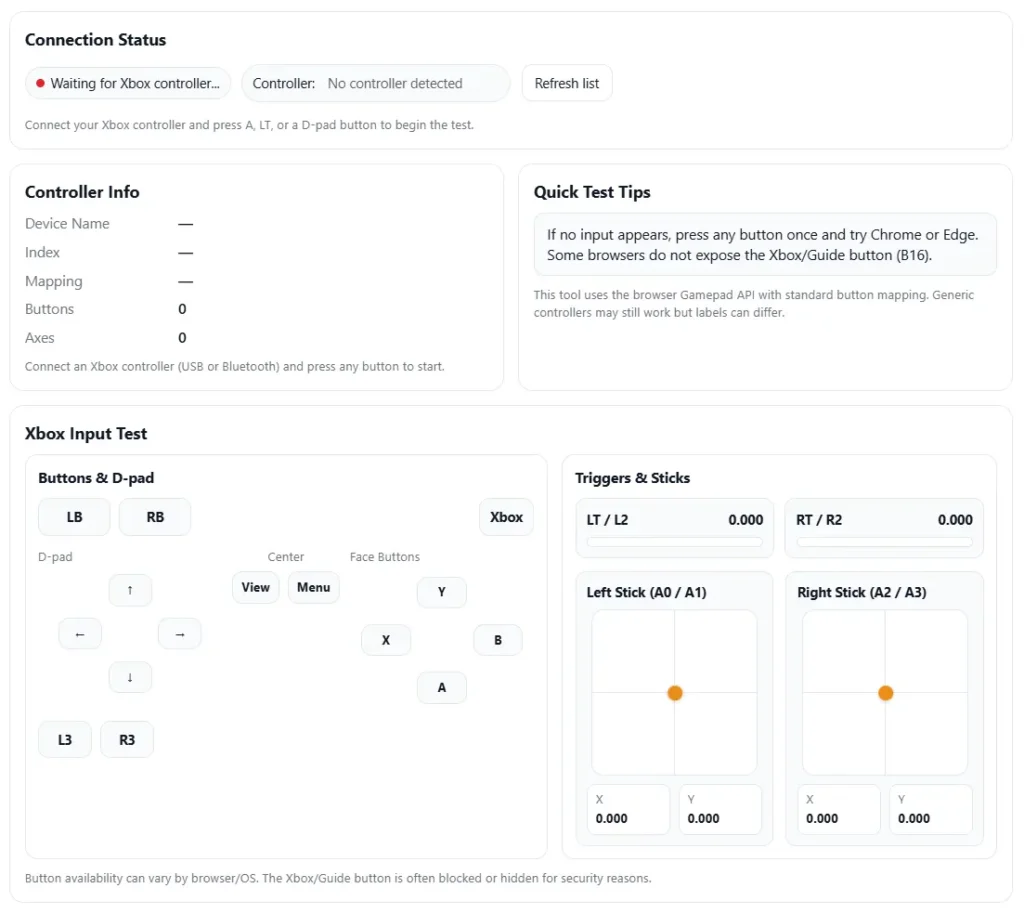
Connect your Xbox controller and press A, LT, or a D-pad button to begin the test.
Controller Info
Connect an Xbox controller (USB or Bluetooth) and press any button to start.
Quick Test Tips
This tool uses the browser Gamepad API with standard button mapping. Generic controllers may still work but labels can differ.
Xbox Input Test
Buttons & D-pad
Triggers & Sticks
Button availability can vary by browser/OS. The Xbox/Guide button is often blocked or hidden for security reasons.
Well, here’s the deal. An xbox controller tester is a simple way to check if your controller works the way it should. It can be a tool on your PC, an app on your console, or even a web page in your browser. All of them do the same job. They read your controller inputs and show what each button, stick, and trigger is doing.
People use these tools to test Xbox controller problems before they think about repair. It works with most models like Xbox Series X|S controllers, Xbox One controllers, Xbox 360 wired controllers, and Xbox Elite controllers.
A tester runs quick controller diagnostics like:
- Button test to see if presses register once
- Gamepad input test to check every control
- Analog stick drift check when the stick moves by itself
- Trigger calibration check to see if triggers reach full input
But here’s something important. These tools show the symptom, not always the real cause. A test might show drift or double inputs. The fix could still need cleaning, settings changes, or a repair.
So I usually start with official system tools first. Then I use other testers if the problem still shows up.
Main Points From an Xbox Controller Test
Well, here’s what I usually check when I run an xbox controller tester. A simple gamepad input test shows if the controller works right or if something feels off.
- A tester helps confirm analog stick drift, dead zone problems, trigger range, and button response. If a stick moves when you do nothing, the controller diagnostics will show it.
- I always start with built in tools first. Windows Game Controllers or the Xbox Accessories app can test xbox controller inputs without using extra software.
- Test things in a clear order. This makes problems easier to find.
Sticks → triggers → bumpers and buttons → D pad → vibration → connection - If a button test fails in only one game, the controller might be fine. Many games use custom dead zone settings or button remaps.
- Wired testing helps a lot. A USB cable removes Bluetooth problems and makes the gamepad input test more stable.
- If analog stick drift still shows after recalibration, the cause is often wear, dirt inside the stick, or a damaged potentiometer sensor.
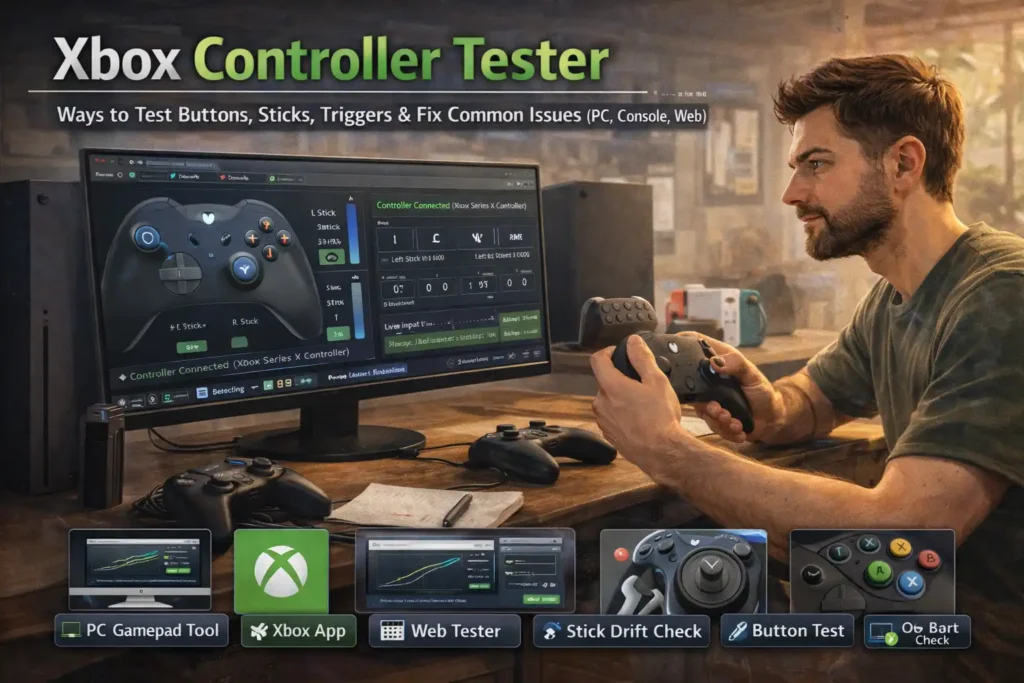
What an Xbox Controller Tester Checks (and What It Can’t)
I’ve used an xbox controller tester many times, and it mostly reads the signals your controller sends. The tester shows input mapping and live axis values. That means you can see how far a stick moves on the X and Y axis, or how much a trigger presses from 0% to 100%.
The tool runs a basic gamepad input test. It checks if buttons press once, sticks move smoothly, and triggers reach full range. Some testers also show polling updates and small changes in latency, but they mainly focus on input signals.
What a Tester Can Check
- Button presses using a simple button test
- Analog stick movement on X and Y axis values
- Trigger range from light press to full 100% input
- Dead zone behavior near the stick center
- Calibration changes after settings updates
- Basic connection signals during a controller diagnostics check
What a Tester Cannot Confirm
- The exact hardware part that failed
- Internal board damage or worn components
- Battery health or long term connection stability
Quick Symptom Guide
- Axis jitter near center → possible wear or dust in the stick
- Trigger stops before 100% → trigger wear or debris
- Random disconnects → battery, USB cable, or Bluetooth signal issues
So yeah, a tester helps a lot. But it shows the symptom, not always the exact cause.
Before You Test: Quick Setup Checklist (Avoid False Positives)
I’ve seen this happen a lot. Someone runs a tester, sees weird results, and thinks the controller is broken. But sometimes it is just a setup issue. I usually run this quick checklist before any xbox controller tester or gamepad input test.
- Charge the controller or replace batteries. Low power can cause random input problems.
- Test wired first with a USB cable. A wired connection removes many Bluetooth issues and makes the test more stable.
- Check Bluetooth pairing. If the controller connects to another device nearby, inputs may fail or lag.
- Restart your PC or console. This refreshes the controller driver and clears small system glitches.
- Try another USB cable or USB port. Faulty cables often cause disconnects during a controller test.
- Close Steam Input overlays for now. Steam Input can remap buttons and confuse a button test.
- Look in Device Manager. Make sure the controller shows correctly and no driver warning appears.
- Check for a firmware update in the Xbox Accessories app. You can read more in Xbox Accessories app support.
- Note your controller model and connection type. For example: Xbox Series controller via USB or Bluetooth.
- If possible, test on another device. Then run an Xbox controller test online and compare results.
Doing this first helps avoid false results and makes controller diagnostics much easier.
How to Test an Xbox Controller on Windows (Built In Tools First)
I usually start with Windows tools before trying any xbox controller tester online. Windows already has a simple gamepad input test built in. It shows live button input and stick movement, which helps with quick controller diagnostics.
Steps to Test Using Windows Controller Settings
- Open the Run box.
Press Windows + R, type joy.cpl, and press Enter. This opens Windows controller settings. - Select your controller.
Your Xbox controller should appear in the list. Click it, then choose Properties to open game controller properties. - Check button inputs.
Press each button slowly.- Every press should light up in the tester.
- If one press shows two signals, that could mean a double input issue.
- Run the axis test for sticks.
Move both sticks in slow circles.- The crosshair should move smoothly.
- Small shaking near the center may show stick jitter or drift.
- Test trigger range.
Press the triggers slowly from light press to full pull.- The bar should move smoothly.
- It should reach full range with no sudden jumps.
- Watch for odd behavior.
Random movement, stuck values, or delayed response may show a hardware or connection problem.
Quick tip: Before changing settings or doing a firmware update, take screenshots or write notes about what you see. That makes it easier to compare results later.
If you want extra troubleshooting help, Microsoft provides guidance on controller issues through https://support.microsoft.com/.
How to Test Using the Xbox Accessories App (Mapping, Firmware, Profiles)
Sometimes the controller is fine, but the settings cause the problem. The Xbox Accessories app helps check things like remap buttons, firmware, and controller profiles.
Here’s what I normally check:
- Button mapping
Make sure no button has been changed. A remap can make it look like the wrong button is working. - Firmware update
Check if a firmware update is available. Updates can fix connection or input bugs. - Profiles
Some controllers store different profiles. If the wrong one loads, buttons may act differently. - Elite controller paddles
For Xbox Elite controller paddles, confirm each paddle has the correct action. - General input test
Press buttons and triggers in the app to confirm they respond correctly.
So yeah, sometimes it looks like a broken button. But it turns out to be a remap or profile setting instead of a hardware problem.
How to Test an Xbox Controller Online (Web Based Tester Workflow)
Sometimes I just use a browser tool instead of installing anything. An online controller tester reads the signals from your controller and shows them on screen. These tools use the browser Gamepad API, which lets the site display live input visualization for buttons, sticks, and triggers.
A web gamepad tester works on most modern browsers. But I usually test wired first. A USB cable removes many Bluetooth connection problems.
Steps to Run an Online Controller Test
- Connect your controller
Plug it in with a USB cable or connect through Bluetooth. - Open a tester page
For example, you can try this online Xbox controller tester. - Allow browser access if asked
Some browsers require permission before the controller appears. - Confirm the controller is detected
The tester should show a controller name and live input data. - Move both analog sticks slowly
Watch the movement on screen. The stick path should look smooth across the axis. - Press triggers slowly
The input bar should move from light press to full range. - Test every button and bumper
Each press should register once. No extra signals. - Check D pad directions and diagonals
Press up, down, left, right, and corners to confirm clean input. - Run a quick consistency test
Press the same button about 10 times. If the tester misses presses or shows doubles, something may be wrong.
What to Test and What It Usually Means
| What to Test | What It Indicates |
| Stick movement | Smooth movement shows healthy axis response |
| Trigger pull | Full range shows correct trigger input |
| Button presses | Single signal means normal button response |
| D pad directions | Correct diagonals show proper input mapping |
| Repeated button test | Missed or double signals suggest button issues |
These testers rely on the browser Gamepad API, which reads controller inputs from your system.
Full Diagnostic Checklist: Test Order That Finds Problems Fast
I’ve seen people test random buttons and miss the real issue. A better way is to follow a simple diagnostic checklist. One step at a time. That makes controller diagnostics much clearer.
Step by Step Test Order
- Connectivity check
Start with connection stability.- Watch for random disconnects or intermittent input.
- If using Bluetooth, try a USB cable to compare results.
- Buttons first
Run a basic button test.- Each press should register once.
- Two signals from one press may mean ghost inputs.
- D pad directions
Press each direction and diagonals.- Inputs should show clearly with no delay.
- Analog sticks
Move sticks slowly across the screen.- Watch for jitter near the center.
- Check if the stick returns to the middle or drifts.
- Triggers
Press slowly from light to full pull.- The tester should show smooth movement to max range.
- Bumpers
Tap them repeatedly.- Missed presses may show wear inside the switch.
- Vibration and headset
If supported, confirm vibration motors work and headset audio responds.
Signs Something Is Wrong
- Stuck input → button or stick stays active
- Axis jitter → small random movement when idle
- Max range not reached → trigger or stick cannot hit full value
- Intermittent input → connection or power issue
Simple Test Log Template
I like writing down results before trying fixes.
Device:
Connection:
Symptom:
Test Result:
Next Step:
Example:
Device: Xbox Series Controller
Connection: USB
Symptom: Left stick drift
Result: Axis moves slightly at center
Next Step: check dead zone or clean stick
Analog Stick Drift and Dead Zones: How to Confirm It
Sometimes people say their controller has drift, but it’s actually game settings. A real stick drift test shows the problem even when nothing touches the controller.
Steps to Confirm Drift
- Open a tester and leave the stick at the center point.
- Watch the axis values for about 30 seconds.
- Move the stick in slow circles across the range.
- Compare the left stick and right stick movement.
What to Look For
- Axis jitter near center
Small shaking usually means wear or dust. - Movement without touching the stick
That shows real drift. - One stick worse than the other
Often a sign of hardware wear.
If the tester shows no movement at rest, the problem may be dead zone settings inside the game. I usually check game settings only after confirming drift in a neutral tester.
Trigger Issues: Full Pull Not Reaching 100% or Uneven Response
Triggers on Xbox controllers are analog triggers, which means the tester should show gradual movement as you press them.
Steps for a Trigger Range Test
- Press the trigger slowly.
- Watch the value increase smoothly.
- Hold a full press and check the final value.
- Repeat the same test on the other trigger.
What to Compare
- Full input level
Both triggers should reach the same max range. - Smooth ramp movement
No sudden jumps in the value. - Left vs right trigger response
One slower trigger may mean wear.
Quick Things to Check
- Look for dirt around the trigger edges.
- Test wired to rule out connection problems.
- If the trigger feels sticky, debris may be blocking the mechanism.
Avoid opening the controller unless you know what you are doing. Internal parts are small and easy to damage.
Button Problems: Double Presses, Missed Presses, or Wrong Mapping
Button problems can look worse than they really are. Sometimes it’s hardware. Sometimes it’s just a software remap.
Common Button Symptoms
- Double input
One press sends two signals. - Missed presses
Button sometimes does nothing. - Wrong button action
A press triggers a different command.
Quick Button Test
Press the same button about ten times in a tester.
- Every press should register once.
- Extra signals may relate to debouncing issues in the switch.
Simple Troubleshooting Flow
- Test in a controller tester
If the input looks wrong here, the problem is likely hardware. - Test in another game
If the issue appears in only one game, check settings. - Check remapping tools
Programs like Steam can create a Steam Input conflict. - Try another device
If the problem follows the controller, the hardware likely caused it.
So yeah, that small test order saves time. Instead of guessing, you see exactly where the problem shows up.
Fixes After Testing: From Simple Tweaks to Repair Options
So you ran an xbox controller tester and something looks off. Maybe analog stick drift, missed inputs, or triggers not reaching full range. The next step is trying fixes from simple to more serious. I usually start with the safest things first.
Fixes You Can Try With No Tools
These solve many issues during basic controller diagnostics.
- Reconnect Bluetooth pairing
Remove the controller and pair it again. This helps if Bluetooth interference caused connection drops. - Test with a USB cable
A wired test removes wireless problems. Sometimes the issue disappears right away. - Change USB port or cable
Faulty ports or cables often cause input delays or disconnects. - Update controller firmware
Run a firmware update using the Xbox Accessories app. - Reset controller mappings
Custom profiles or remaps may cause wrong button actions. - Test on another device
Try another PC or console to isolate the problem.
Light Maintenance Checks
These steps require a little care but no major repair.
- Check for dust around sticks or triggers
Dirt can block movement and create axis jitter. - Verify dead zone settings in games
After confirming drift in a tester, a small dead zone adjustment can reduce movement problems. - Run calibration again
Some software tools allow you to recalibrate stick and trigger ranges.
When Repair or Replacement May Be Needed
If the same problem appears across multiple tests, hardware wear is likely.
- Persistent stick drift after recalibration
- Triggers not reaching full input range
- Buttons showing constant double input
In these cases you have a few choices:
- Professional controller repair
- Replacement parts or a new controller
- Manufacturer service if still under warranty
One warning I always give. Do not spray liquids inside the controller. That can damage internal parts quickly.
If the controller still has warranty coverage, it is safer to use official service through Xbox support.
Platform and Model Coverage: Choosing the Right Tester for Your Controller
I’ve noticed something interesting. Many controller issues look like hardware problems, but they actually depend on the device you test on. A tester that works well for an Xbox Series controller on Windows might behave differently on mobile or console. So picking the right tool really helps.
Also, different models connect in different ways. Some use wired vs Bluetooth connections, and older controllers may behave a little differently.
Here’s a simple way I look at controller compatibility when running a test.
Windows PC Testing
Best choice if you want detailed controller diagnostics.
- Works well for Xbox Series controller and Xbox One controller
- Supports USB and Bluetooth connections
- Windows tools and web testers show full stick and trigger values
- Good for finding drift, input delay, or button issues
Xbox Console Testing
Useful for quick checks.
- Tests real gameplay behavior
- Helps confirm if a problem only happens on PC
- Good for verifying button input and stick movement
Console tests do not always show detailed axis values, but they still help identify real gameplay issues.
Mobile or Browser Testing
A simple option if you do not want to install software.
- Works through browser tools
- Shows live input signals
- Often easier with wired connections
Older Xbox 360 Controllers
Older models may work a bit differently.
- Many are wired controllers
- Some need a wireless receiver on PC
- Input behavior can differ from newer controllers
If you are using an older model, you can test an Xbox 360 controller with a model specific tester. So yeah, the best tester usually depends on two things: the controller model and the device you connect it to.
Testing on Xbox Console: Quick Reality Check for PC Only Problems
Sometimes the controller looks broken on PC but works fine on console. That usually points to software or driver issues.
Here’s a quick Xbox console test I like to run.
- Open another game or app
Try a different title to see if the problem appears there. - Check controller settings
Look for remapped buttons or unusual control options. - Re sync the controller
Use the pairing button to refresh controller pairing. - Compare behavior with another controller
If another controller works fine, the first one may have a hardware issue.
Testing on a second device is one of the best ways to isolate the issue. If the problem only appears on PC, the cause is usually drivers, software settings, or connection problems.
Related Controller Testers for Troubleshooting Multiple Devices
Sometimes the problem may not be the Xbox controller at all. I’ve seen cases where the PC, browser, or console caused the issue. That’s why using another controller tester with a different device can help confirm what is actually wrong.
If you own more than one controller, running a quick test with another model helps compare behavior.
When Other Controller Tests Help
- PlayStation controllers
If you also use a PlayStation gamepad, try a PS5 controller test or a PS4 controller test. If both controllers show the same issue, the problem may come from the device or software. - Nintendo controllers
A Switch Pro controller test or Joy Con test can confirm whether the system reads inputs correctly.
Quick Cross Check Tip
Use a known good controller on the same PC or console.
- If both controllers fail → likely system or software issue
- If only one fails → the controller itself likely caused the problem
That small comparison test can save a lot of guessing.
Common Problems and What Your Tester Results Usually Mean
I’ve run a lot of controller diagnostics, and the tester results usually point to a few common patterns. A good xbox controller tester shows the symptom clearly. The tricky part is figuring out the likely cause and the next step.
So I like using a simple troubleshooting table. It helps match the tester result with a safe action.
| Symptom Seen in Tester | Likely Cause | Next Step | Confidence Level |
| Stick moves slightly when untouched | Wear in the stick module or dust causing axis jitter | Try recalibration, increase dead zone, or clean around the stick | Medium |
| Trigger stops before full value | Trigger wear or debris blocking movement | Run a trigger test again, inspect trigger edges, test wired | Medium |
| Button sends two signals per press | Button switch wear or double input issue | Test repeated presses, check remaps or overlays | Medium |
| Controller disconnects randomly | Weak battery, Bluetooth interference, or USB cable issue | Replace batteries, reconnect pairing, try another cable | Medium |
| No vibration response | Disabled vibration setting or firmware issue | Check system settings and run firmware update | Low |
| Delayed button response | Connection instability or driver problem | Test wired connection and restart system | Low |
| Stick movement jumps suddenly | Calibration issue or stick sensor wear | Run calibration and confirm in another tester | Medium |
| Tester shows no input at all | Controller not detected or driver problem | Check USB port, reconnect controller, confirm device detection | Medium |
These controller diagnostics results do not always confirm the exact failure. But they give a strong hint about what is happening. I usually follow the next step first before thinking about repair or replacement.
Trust, Safety, and Privacy When Using Online Controller Testers
I get this question a lot. People worry about privacy when using an online controller tester. The good news is most web testers only read simple controller signals. They show button presses and axis movement from the browser. That’s it.
These tools use the browser’s Gamepad system, which reads controller inputs but does not access personal files or accounts. Still, it’s smart to be careful and use a trustworthy tool.
Simple Safety Tips
- Use well known tester pages
Avoid random sites that ask you to download software. - Watch browser permissions
Most testers only need basic browser permissions to read controller inputs. - Do not install unknown programs
A simple controller test should run in the browser. No extra executable needed. - Prefer official system tools first
Built in tools like Windows controller settings are usually the safest place to start. - Check basic browser security
Look for HTTPS pages and avoid sites that ask for unusual access.
Final Check: Confirm the Problem, Find the Cause, Then Fix or Replace
I usually treat an xbox controller tester like a first diagnosis tool. It helps you diagnose problems like drift, button errors, or trigger issues before trying any repair. The goal is simple. Confirm the symptom, test in a few environments, then decide the safest way to fix it. If tests show the same issue everywhere, the controller hardware likely caused it.
FAQ (Xbox Controller Tester)
How do I test my Xbox controller on PC?
You can test Xbox controller on PC using built in Windows tools or the Xbox Accessories app. These show button presses, sticks, and triggers.
Quick steps
Open Windows Run and type joy.cpl
Check inputs in Game Controller Properties
Confirm results in a web tester and try wired testing
Testing on another device helps isolate hardware vs software problems.
What’s the best online Xbox controller tester?
A good online Xbox controller tester should show clear inputs and require no downloads. Most web testers use the browser Gamepad API to read controller signals.
Look for these features:
Clear stick axis view
Full button map display
No install required
Secure HTTPS page
How can I tell if I have stick drift or just low dead zone settings?
A neutral tester helps confirm stick drift. If the stick moves when untouched, drift is likely.
Check these signs:
Leave the stick still for about 30 seconds
Watch for jitter near the center
Test in another app or tester
If only one game shows movement, it may be dead zone settings
Why isn’t my Xbox controller detected by a web tester?
If the controller is not detected in the browser, a connection problem is common.
Try these steps:
Connect using a USB cable first
Reconnect Bluetooth pairing
Close apps that may control inputs
Switch browsers
Check drivers in Windows tools to confirm detection
Do I need to calibrate an Xbox controller?
Sometimes calibration helps, but not always. A calibrate Xbox controller process mainly fixes software input issues.
Calibration helps when:
Inputs look slightly off after updates
Button remap settings cause confusion
Calibration usually will not fix hardware drift. In that case check firmware or controller wear.
Can I test an Xbox 360 controller the same way as an Xbox One or Series controller?
Yes, the test process is similar. But the Xbox 360 controller often uses a wired controller connection or wireless receiver.
Some testers work better with model specific setups.
How do I know if the problem is my controller or my PC or console?
You can isolate issue sources with a quick troubleshooting check.
Test the same controller on another device
Test a different controller on the same system
Compare wired vs wireless results
If the issue follows the controller, it’s hardware. If not, it’s likely software or system related.