
Xbox 360 Controller Test
Test your Xbox 360 controller online with live button, trigger, D-pad, and analog stick input detection in the browser.
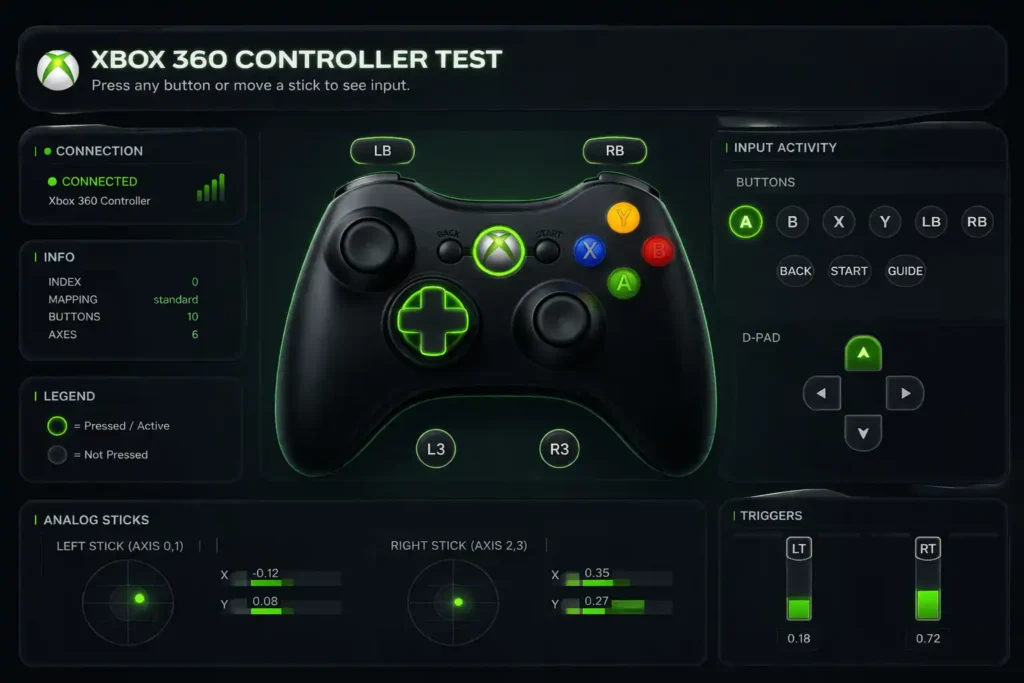
Connection Status
Connect your Xbox 360 controller and press A, LT, or a D-pad button to begin the test.
Controller Info
Connect an Xbox 360 controller (USB or wireless receiver) and press any button to start.
Quick Test Tips
This tool uses the browser Gamepad API with standard mapping. The Guide button is often hidden by browsers/OS.
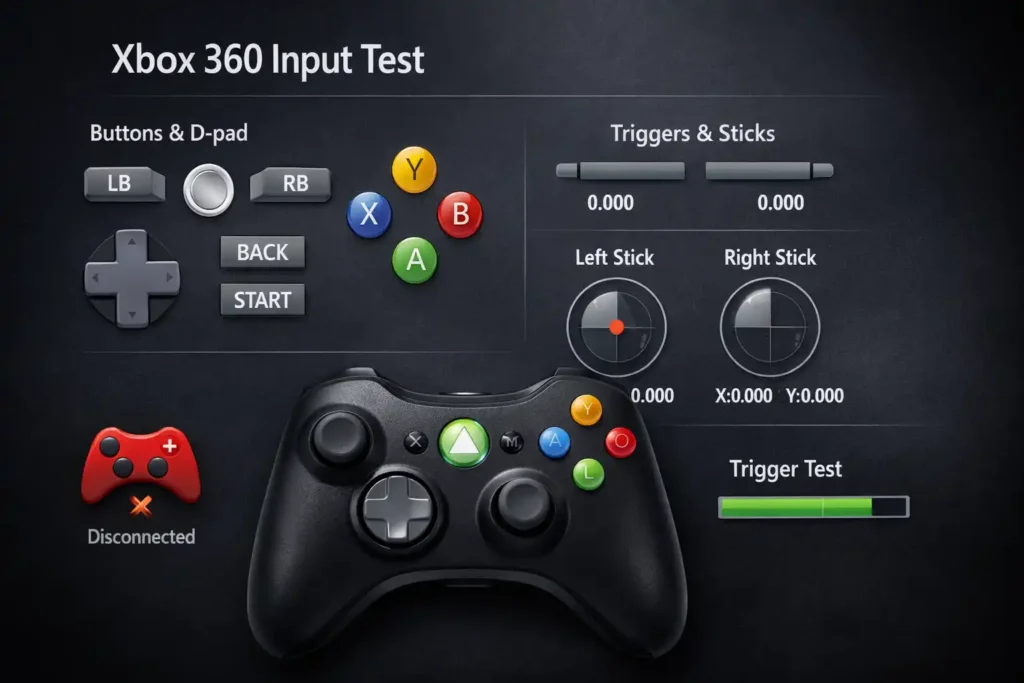
Xbox 360 Input Test
Buttons & D-pad
Triggers & Sticks
Xbox 360 controller support depends on browser, OS, and driver/receiver setup. Wired controllers are usually easier to detect than wireless on desktop browsers.
Well, here’s the deal. An xbox 360 controller tester shows what your controller is doing in real time. You press a button. The tester shows it on screen. Move a stick. The tool shows the axis moving. It helps you test xbox 360 controller inputs fast without guessing what’s wrong.
I usually use a tester for a quick button test, analog stick drift test, and trigger test. You can see problems like stick deadzone issues, slow movement, or weird input latency. And yes, this works for wired controllers and wireless ones too, as long as the PC uses the Xbox 360 wireless adapter.
But one thing to keep in mind. A tester only shows the inputs. It can’t repair the hardware. I often check results in the Windows Game Controllers panel as a baseline, then compare them with the online tester to confirm the issue.
Key Points to Remember When Testing an Xbox 360 Controller
- Use an xbox 360 controller tester to check every input. Press each button, move the D pad, run a button test, check both sticks, and perform a trigger test to see the full range.
- First step. Confirm the controller connects properly. A wired controller needs a good USB connection. A wireless one needs the Xbox 360 receiver on PC. Many people try to test xbox 360 controller inputs before checking this. And that causes confusion.
- Stick problems usually show during an analog stick drift test. The stick moves on screen even when untouched. Or the stick cannot reach full edges because the deadzone or range is off.
- Trigger issues often look like this. The trigger shows as slightly pressed all the time. Or it never reaches full input during the trigger test.
- I usually compare results in two tools. First an online tester. Then the Windows Game Controllers panel. This helps rule out browser problems or weird input latency readings.
- And honestly, many bad inputs come from dirt or wear. A quick calibration check often shows if the issue is software settings or real hardware damage.
Quick Start: Test Your Xbox 360 Controller in About 60 Seconds (Online + Windows)
I usually do a quick check before blaming the controller. Takes about a minute. And honestly, this simple routine catches most problems like drift, stuck buttons, or trigger issues.
Step by Step Quick Test
- Connect the controller
- Plug in the wired controller using USB.
- Or connect the wireless one using the Xbox 360 receiver.
- The PC should detect it as an XInput device.
- Open an online tester
- Go to an online controller tester like this Xbox controller test page.
- These tools use the browser gamepad API to read controller inputs.
- Press every button
- Run a quick button test.
- Press A, B, X, Y, Start, Back, LB, RB, and stick clicks.
- The gamepad tester should highlight each press instantly.
- Move the analog sticks
- Rotate each stick in a slow circle.
- Watch the axis indicator move smoothly.
- It should return near the center when released.
- Test the triggers
- Press LT and RT slowly.
- The trigger axis should move smoothly from rest to full press.
- Save proof if needed
- Take a screenshot of the results.
- This helps when selling a used controller or proving it works.
What Success Looks Like (Quick Pass Check)
- Buttons register one press only
- Sticks move smoothly and return near center
- Triggers reach full range
- No random inputs appear
If something looks odd, don’t panic yet. I usually compare results with the Windows controller test to confirm it.
Option A: Use the CyberFanatix Xbox 360 Controller Test Page (Recommended)
Honestly, this is the fastest way to see what your controller is doing.
Try the Xbox 360 controller test page and follow these steps:
- Open the page in your browser.
- Connect your controller first.
- The page should detect the controller automatically.
- Look for the controller input display on the screen.
- Press buttons and watch the highlights change.
- Move sticks and triggers to check the stick axis values and trigger axis movement.
Each input should respond instantly. If a button lights up without touching it, that usually means drift or a stuck contact.
Controller not showing up? I’ve seen that happen.
Try these quick fixes:
- Switch to another USB port
- Use another browser
- Disconnect and reconnect the controller
Sometimes the browser simply fails to detect the device.
Option B: Use the Windows Built In Controller Test (Baseline Check)
Windows already includes a testing screen. I often use this as the baseline check before trusting browser tools.
Steps
- Open the Windows search bar.
- Type game controllers.
- Click Set up USB game controllers.
- Select your controller from the list.
- Click Properties.
- Open the Test tab.
This opens the Game Controllers control panel, where you can see live input data.
What You Should See
- Button lights appear when pressed
- Sticks move the crosshair smoothly
- Triggers respond during pressure
- No movement when the controller sits still
If something looks off, try the calibration tab inside controller properties.
And if the browser tester shows weird inputs but Windows looks fine?
Yeah. That usually means the problem comes from the browser, not the controller.
Before You Test: Compatibility and Connection Checklist (Avoid False Failures)
I’ve seen people think their controller is broken. But the problem was just the setup. Happens a lot. So before you run an xbox 360 controller tester, check a few basics first.
Here’s the quick checklist I usually follow.
- Check wired vs wireless setup
A wired controller USB connection should plug straight into the PC. A wireless one needs the Xbox 360 wireless receiver for Windows. Without that receiver, the PC will not detect the controller. - Confirm the controller shows as a driver device
Windows should recognize it as an XInput device. If the driver fails to load, the controller might appear but not work correctly. - Check power and batteries
Wireless controllers need working batteries or a charged battery pack. Weak power can cause delayed inputs or sudden disconnects. - Inspect the USB cable
A worn cable can cause random disconnects. If the cable feels loose or damaged, the tester may show the controller not detected. - Try another USB port
Some ports provide unstable power. Switching ports often fixes connection problems. - Test browser compatibility
Most modern browsers that support the Gamepad API can read controller input. If the tester fails, try another browser. - Close remapping tools
Programs like Steam Input or DS4Windows can change inputs. That can confuse the tester. - Control the variables
This one helps a lot. Test the controller on a second PC or console. If the problem stays, the controller likely has hardware wear.
Browsers read controller data using the Gamepad API standard. The official reference explains how browsers detect controllers here:
https://www.w3.org/TR/gamepad/
Wired Xbox 360 Controller (USB): What Usually Goes Wrong
Sometimes a wired controller fails for simple reasons. I check these first.
- USB disconnect → Loose connection
The cable moves slightly and the controller drops connection.
Quick check: reconnect the cable firmly. - Controller drops during play → Damaged cable
A bent or frayed cable can cause random input loss.
Quick check: move the cable gently and see if the device disconnects. - Controller not detected → USB port issue
Some ports fail to provide stable power.
Quick check: plug into another USB port on the PC. - Input stops randomly → Faulty cable
Old controllers often develop internal cable damage.
Quick check: compare using a known good controller or cable.
Honestly, swapping cables or ports fixes a surprising number of problems.
Wireless Xbox 360 Controller: Receiver, Batteries, Pairing
Wireless controllers need one extra piece of hardware. The wireless receiver. Without it, the PC cannot read the signal.
Here’s the simple pairing process.
- Plug the wireless receiver into the PC.
- Press the small sync button on the receiver.
- Press the sync button on the controller.
- Wait a moment while the lights stop flashing.
That means the pairing finished.
If the controller connects but acts weird, check these things:
- Low batteries in the battery pack
- Receiver too far from controller
- USB hubs causing signal delay
And here’s one thing I’ve noticed. Sometimes pairing works, but inputs feel slow. That usually means interference or distance problems. Moving the controller closer to the receiver often fixes the lag.
Understanding Xbox 360 Controller Tester Results (Buttons, D Pad, Sticks, Triggers, Vibration)
Well, here’s something people miss. Running a tester is easy. But reading the results correctly matters just as much. The tool shows real time input diagnostics, so every button press, stick movement, and trigger pull appears instantly on the screen.
Digital buttons behave like switches. They turn on when pressed and off when released. Analog parts such as sticks and triggers behave differently. They move across an analog range, which testers display as changing axis values. If the values move smoothly and return close to the center, the controller usually works fine.
One tip I always suggest. Save proof. Take a screenshot or short recording of the tester results. It helps a lot if you need to return a controller or show proof when selling one online.
| Controller Input | Expected Behavior | Common Failure Pattern |
| Buttons | Press shows instantly, release turns off | Double press or stuck input |
| D Pad | Each direction activates clearly | Missed directions or weak diagonals |
| Analog Sticks | Smooth circular motion, returns near center | Drift, uneven movement, deadzone issues |
| Triggers | Gradual movement across trigger axis | Always slightly pressed or limited range |
| Stick Click | Registers one press only | No response or repeated input |
| Vibration | Controller rumble activates when triggered | No vibration or weak motor |
Button Test (A B X Y, Start, Back, LB RB, Stick Click)
I usually start with a simple button mapping check. Press every button slowly and watch the tester respond.
Here’s the checklist I follow.
- Press A, B, X, Y one at a time
- Press Start and Back
- Test LB and RB bumpers
- Press left and right stick clicks
What should happen:
- Each press shows one input only
- The button turns off immediately after release
- No button stays stuck on screen
Common issues you might see:
- Sticky button
The input stays active even after release. - Double input
One press triggers two signals. - Unresponsive bumper
LB or RB fails to register.
Try two testing styles. First slow presses. Then fast taps. Rapid taps often reveal hidden bounce problems.
D Pad Test (Directions and Diagonals)
The D pad works differently from analog sticks. It sends clear direction signals instead of gradual movement.
Press each direction and watch the tester highlight the input.
Things to check:
- Up direction registers clearly
- Down direction registers clearly
- Left and right respond instantly
- Diagonal input may appear as two directions
Sometimes a d pad not working issue shows up during this step. One direction might feel weak or inconsistent.
A simple trick I use is the clockwise sweep test. Move through directions in a circle: up, right, down, left. If the tester misses a direction during the sweep, that usually means d pad wear.
Analog Stick Test (Drift, Deadzone, Full Range, Snapback)
This is where most controller problems appear.
Start by leaving the sticks untouched. The tester should show them sitting near the center. If the axis moves on its own, that’s stick drift.
Now run this quick test.
Steps
- Move the stick slowly in a circle.
- Watch the axis move smoothly across the screen.
- Push the stick fully in each direction.
- Release it and see if it returns near center.
Now check for warning signs.
Red flags
- The stick moves even when untouched
- Movement feels uneven on one side
- The stick cannot reach full edges
- The stick overshoots the center when released
That last one is called snapback. The internal spring pushes the stick past center for a moment before settling.
A rough drift guide I use:
- Low drift
Slight movement near center but mostly stable. - Medium drift
Visible movement even without touching the stick. - High drift
The cursor or axis moves strongly on its own.
Many cases come from potentiometer wear inside the stick module. Repair guides often explain this type of hardware issue, like those found on iFixit.
Trigger Test (LT RT Range and Partial Press Issues)
Triggers behave like analog controls, not simple buttons. A tester shows their position along the trigger axis.
Check them like this.
- Resting position should show not pressed
- Press slowly and watch the axis move smoothly
- Press fully to confirm the trigger reaches full range
Possible problems:
- Trigger not reaching full range
- Trigger stuck partly active
- Analog trigger jitter where the value flickers
Quick decision check I use:
- Trigger shows partial press at rest
- Press and release several times
- If the problem stays, inspect the trigger hinge area
Sometimes dust builds around the hinge. A light external cleaning can fix it without opening the controller.
Vibration or Rumble Test (If Supported)
Not every tester supports vibration checks. Some web tools simply read inputs and cannot activate rumble motors.
So if the vibration test does not work in the browser, try a game that supports force feedback.
If rumble still fails there, the issue usually comes from the vibration motor, driver limits, or internal wear.
Common Problems a Controller Tester Reveals (Symptoms, Cause, What to Try)
I’ve seen this happen a lot. A controller feels broken during a game. But when you open a tester, the problem becomes obvious in seconds. The tester shows the symptom diagnosis clearly, which helps with fast controller troubleshooting.
Here are the most common issues testers reveal.
| Problem | Tester Signal | Most Common Cause | What to Try First |
| Stick drift | Axis moves when stick is untouched | Worn stick module or dirt | Clean around stick and retest |
| Stuck button | Button stays active after release | Sticky contact or debris | Press repeatedly and clean area |
| Dead bumper | LB or RB shows no input | Worn bumper switch | Test multiple presses |
| Trigger always on | Trigger axis shows slight press at rest | Trigger wear or dust | Clean hinge area |
| Intermittent disconnect | Controller appears and disappears | Loose cable or weak wireless link | Change USB port or receiver position |
| Wrong button mapping | Buttons trigger unexpected actions | Remapping conflict from software | Close remapping tools |
| Laggy inputs | Delayed or jittery movement | Wireless interference or system load | Test wired connection |
One thing I always keep in mind. Not every issue means the controller is finished. But if you see severe drift plus physical stick damage, replacing the controller might be the more practical choice.
Also, troubleshooting patterns look very similar across platforms. If you ever compare another controller, tools like the PS4 controller test can show the same kinds of symptoms.
Controller Not Detected in the Tester
Sometimes the tester opens but nothing shows up. No controller slot. No input. That usually means the system cannot see the device.
Here’s the quick process I follow.
- Check the connection
Plug the controller again if it uses USB. If it’s wireless, confirm the receiver is connected. - Try another browser
Some browsers fail to read the browser gamepad input even when the controller works. - Close remapping tools
Programs like Steam Input or DS4Windows can block detection. - Verify in Windows first
Open the Game Controllers panel. If the controller appears there, the hardware works. - Restart the browser or PC
Sometimes the device fails to refresh until a restart.
One extra step helps a lot. Isolate variables. Try another controller or test the same controller on another device. If the second device detects it, the issue likely comes from the system, not the controller.
Inputs Register Twice or Randomly Press (Ghost Inputs)
This problem looks strange at first. The tester shows a button press even when you did not touch anything. Or one press becomes two.
People call this ghost inputs.
The cause usually falls into two categories.
Possible hardware causes
- Sticky contacts under the button
- Dust inside the controller
- Button bounce from worn switches
Possible software causes
- Macro software sending repeated commands
- Remapping tools running in the background
- Wireless signal noise affecting input
Honestly, I start with the easy check. Close overlays like Steam Input, then test again. If the ghost inputs disappear, the issue came from the software layer, not the controller itself.
Stick Drift: Quick Fixes vs Real Repairs
Stick drift is probably the most common problem testers reveal. The cursor moves even when the stick sits untouched.
So what should you try first?
Non invasive fixes
- Clean around the analog stick base
- Rotate the stick in circles to remove debris
- Adjust deadzones inside game settings
- Run calibration if the system supports it
These steps sometimes reduce minor drift.
But sometimes the problem runs deeper.
Repair level fixes
- Replace the worn stick module
- Fix the potentiometer inside the stick mechanism
- Perform internal cleaning after opening the controller
Just a small warning here. Opening the controller carries some risk. Screws strip easily and parts can break. If you decide to repair it, following a trusted repair guide helps a lot.
Step by Step Testing Framework (Repeatable Diagnostic Workflow)
I usually follow the same routine every time I test a controller. It keeps things simple. And more importantly, it helps isolate the issue instead of guessing.
You can use this small diagnostic workflow whenever something feels wrong with your Xbox 360 controller.
Controller Testing Framework
- Confirm the connection
- Plug in the controller or connect the wireless receiver.
- Make sure the system detects it as an XInput device.
- Decision:
Pass → Continue to the next step.
Fail → Try another USB port, receiver, or cable. - Run a baseline Windows test
- Open the Game Controllers panel.
- Check button presses, sticks, and triggers.
- Decision:
Pass → Move to a browser tester.
Fail → Likely a hardware or driver issue. - Test using a browser tool
- Open one of the controller testing tools from CyberFanatix.
- Watch live inputs while pressing buttons and moving sticks.
- Decision:
Pass → Controller likely works normally.
Fail → Something unusual shows in the tester. - Record anomalies
- Look for drift, stuck inputs, or delayed responses.
- Take screenshots of the tester results.
- Decision:
Pass → No major issue found.
Fail → Continue with deeper checks. - Cross check inside a game
- Launch a game that supports controllers.
- Test movement, aiming, and triggers.
- Decision:
Pass → Problem might be browser related.
Fail → Controller hardware likely worn. - Decide the next step
- Adjust settings or recalibrate if possible.
- Clean the controller if debris might cause issues.
- Replace the controller if problems remain severe.
This controller checklist works because it removes guesswork. One step at a time. Simple.
Printable Checklist: What to Test on Every Used Xbox 360 Controller (Buying or Selling)
When I buy a used controller, I run through this quick used controller checklist. It helps with marketplace verification and avoids surprises later.
You can copy this list or keep it saved when testing controllers.
Face Buttons
☐ A button
☐ B button
☐ X button
☐ Y button
Menu Buttons
☐ Start button
☐ Back button
☐ Guide button (if supported)
D Pad
☐ Up
☐ Down
☐ Left
☐ Right
Shoulder Buttons
☐ LB bumper
☐ RB bumper
Triggers
☐ LT trigger full range
☐ RT trigger full range
Analog Sticks
☐ Left stick movement
☐ Right stick movement
☐ Left stick click
☐ Right stick click
Extra Tests
☐ Vibration / rumble test
☐ Disconnect stress test (move cable or controller slightly)
One thing I always suggest. Save photo evidence. Take a screenshot of the tester results and add it to the listing. Buyers trust listings more when they see proof.
Troubleshooting by Platform (PC, Steam, Emulators, Console)
Controller problems sometimes come from the platform, not the controller. I’ve seen this many times. A controller works fine on one system but behaves strangely on another.
Here are the common cases.
PC Issues
- Driver conflicts can cause delayed inputs.
Fix → Reconnect the controller or reinstall drivers. - Browser testers behave differently.
Fix → Try another browser or run the Windows test panel.
Steam Issues
- Steam Input can remap buttons automatically.
Fix → Disable Steam Input to test raw input.
Emulator Issues
- Emulators use their own controller profile settings.
Fix → Configure mapping inside the emulator.
Console Issues
- Input problems on console often come from controller wear.
Fix → Test the controller on another system.
A simple rule I follow. Reduce variables first. Test the controller using raw input tools before enabling overlays or remapping software.
Steam Input and Remapping Conflicts (Why Your Tester Looks Wrong)
Sometimes the tester shows strange button behavior. A button might trigger the wrong input. That usually comes from remapped buttons.
Steam can translate inputs automatically through Steam Input.
Try these steps.
- Close Steam completely and test again.
- Or open Steam controller settings.
- Disable Steam Input for the game.
- Retest the controller in the tester.
If problems continue:
- Restart the system.
- Test using a clean user profile without extra software.
Steam explains controller configuration here.
Emulators (Xenia, Dolphin, RetroArch): Mapping vs Hardware Problems
Emulators add another layer of settings. So problems can come from mapping instead of hardware.
Here’s how I tell the difference.
Signs of mapping issues
- Buttons respond in the tester but not inside the emulator
- Wrong buttons trigger actions
- Stick directions feel reversed
Signs of hardware problems
- Inputs fail even in a tester
- Stick drift appears outside the emulator
- Buttons fail across multiple programs
Order matters here.
- Test the controller in a browser tester first.
- Confirm raw XInput mapping works.
- Then configure the emulator controls.
That approach saves a lot of troubleshooting time.
Related Controller Testers (If You’re Checking Multiple Controllers)
Sometimes the issue isn’t just one controller. I’ve tested setups where someone had an Xbox, PlayStation, and Switch controller on the same PC. In that case, using the right tester for each device helps a lot.
Different controllers expose different buttons and axis inputs in the browser. Some show extra triggers, others map sticks differently. That’s normal. A platform specific tester helps you see the correct layout and avoid confusion.
If you’re troubleshooting other controllers too, these tools help:
I usually test each controller in its own tool first. Then I compare how the inputs appear. That quick check often reveals whether the problem comes from the controller or the system.
Confirm the Problem, Save the Proof, Then Fix or Replace
Well, here’s the simple way I look at it. A controller tester helps you diagnose controller problems fast. Run a quick button check, move the sticks, and test the triggers. Then cross check the results in Windows or a game. If the inputs behave normally, the issue likely comes from settings. If the tester shows drift, stuck buttons, or trigger errors, the hardware probably needs attention.
Frequently Asked Questions (FAQ)
What is an Xbox 360 controller tester?
An Xbox 360 controller tester shows controller inputs in real time. When you press a button or move a stick, the tool displays the action instantly. This helps you check button mapping, stick movement, and triggers so you can confirm the controller hardware behaves correctly.
Why isn’t my Xbox 360 controller showing up in the online tester?
This usually means the system cannot detect the controller. First check the USB cable or wireless receiver Windows connection. Then confirm the controller appears in the Windows Game Controllers panel. If it works there, try another browser or USB port and close remapping tools.
How do I test an Xbox 360 wireless controller on PC?
You need an Xbox 360 wireless receiver Windows compatible with your PC. Plug in the receiver, press the sync button, and pair the controller. Once connected, run the Windows controller test first, then open the online tester to check sticks, buttons, and triggers.
How can I tell if I have stick drift using a tester?
Open the tester and leave the sticks untouched. If the axis moves on its own or fails to return near the center, the controller likely has drift. You can compare results with the Windows Game Controllers test to confirm the issue before adjusting the deadzone.
My triggers look partially pressed at rest. What does that mean?
Triggers should show not pressed when untouched. If the tester shows a partial press, the trigger might have wear, debris, or trigger calibration problems. Check the Windows test screen and clean around the trigger hinge before assuming the hardware is damaged.
Is the tester accurate, or could it be a browser issue?
Online testers rely on the browser Gamepad API, so results can vary slightly. If something looks wrong, always cross check in Windows Game Controllers. Testing inside a game also helps confirm whether the issue comes from the controller or the browser tool.
Can a tester fix my Xbox 360 controller?
No. A tester only helps diagnose controller issues. It shows inputs like stick movement, buttons, and triggers. Fixing problems may require calibration, cleaning, or hardware repair. In some cases, severe wear makes controller replacement the better option.