
PS4 Controller Test
Test your PS4 DualShock 4 controller online with live button, trigger, D-pad, touchpad click, and analog stick input detection in the browser.
Connection Status
Connect your PS4 controller and press ✖, L2, or a D-pad button to begin the test.
Controller Info
Connect a PS4 DualShock 4 controller (USB or Bluetooth) and press any button to start.
Quick Test Tips
This tool tests Gamepad API input detection only. DualShock 4 lightbar, motion sensors, and rumble are often not fully testable in-browser.
PS4 Controller Input Test
Buttons & D-pad
Triggers & Sticks
Button availability varies by browser/OS. The PS button (B16) and Touchpad click (B17) may be hidden or unavailable on some setups.
A ps4 controller tester checks how a DualShock 4 controller sends inputs. Gamers use it when something feels wrong in a game. Repair techs also run a quick DS4 test before fixing a controller. I usually start with a simple input test. Press a button and see if the tool reacts. A good button test shows each press right away.
You can also check analog stick drift, weird deadzone movement, and trigger pressure in a trigger test. Some tools even show touchpad clicks and motion sensors. But an online test cannot fully confirm things like Bluetooth stability or battery health. And just so you know, a tester only reads controller inputs. It does not change firmware or modify the DualShock 4 in any way.
Key Points to Remember From a PS4 Controller Test
- A ps4 controller tester helps spot problems fast. I usually look for analog stick drift, strange deadzone movement, or buttons that do not react during a button test.
- Try testing the DualShock 4 both ways. First with a USB cable, then with Bluetooth. If the problem shows only on one connection, the issue may come from the cable, port, or wireless signal.
- Watch the live axis values during a DS4 test. A proper input test shows smooth movement from sticks and triggers. Sudden jumps or shaking can point to jitter.
- If analog stick drift shows up, I would start simple. Reconnect the controller, adjust deadzone settings, and clean around the sticks before thinking about part replacement.
- I like checking results in two places. For example, a browser tester and the system gamepad panel. This helps avoid false readings.
- Take screenshots or note the values during the trigger test or stick test. Those records help if you contact support or plan a repair later.
What a PS4 Controller Tester Can Check and What It Can’t
I usually run a quick ps4 controller tester when I want fast controller diagnostics. The tool reads live inputs from the DualShock 4. It shows what the controller sends to the system. But some things still need real gameplay to confirm.
What a tester can check
- Buttons and D pad
A button test shows if each press registers right away. - Analog sticks
The tool shows stick axis values. This helps spot analog stick drift, center offset, or strange jitter when the stick sits still. - Triggers
A trigger test shows pressure movement from light press to full press. - Touchpad click
Many testers confirm if the touchpad click sends an input. - Motion sensors
Some tools read gyro or accelerometer movement during a DS4 test. - Vibration response
A few testers trigger rumble to check motor response.
What a tester cannot fully confirm
- Battery capacity or long term health
- Random Bluetooth disconnects or weak connection stability
- Hidden physical wear if the controller still sends normal inputs
- Console side USB problems like damaged ports or power issues
One thing I like to do is repeat the test after a few minutes of gameplay. Heat or pressure from real use can change stick polling behavior or cause drift that does not show at first.
Quick Start: Online PS4 Controller Test in a Browser
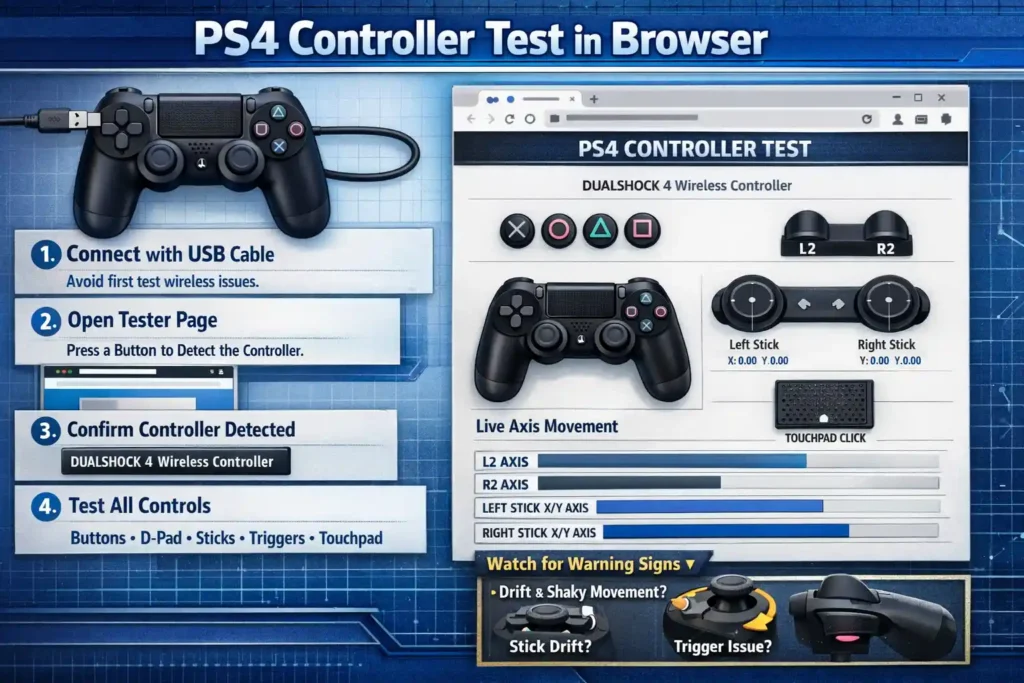
I usually start with an online controller test when I want a fast check. A browser gamepad tester reads the inputs from a DualShock 4 and shows them on screen. Most sites use the Web Gamepad API, which lets the browser read controller signals. If you want to try one, you can run our PS4 controller test.
Steps I normally follow
- Connect the controller with a USB cable first
This avoids wireless problems during the first test. - Open the browser tester page
Press any button so the page detects the controller. - Confirm the controller appears
A ps4 controller tester should show the device name and live input data. - Follow a simple test order so nothing gets missed
- Buttons
- D pad
- Analog sticks
- Triggers
- Touchpad click
- Watch the live axis movement
Sticks should return to the center. Triggers should move smoothly from light press to full press. - Look for warning signs
Drift, shaky movement, or sticks that stop before full range can show problems.
After that, you can also test with Bluetooth to compare results. If you want to see the technical standard behind these tools, the W3C explains the Gamepad API.
USB vs Bluetooth Testing: Finding the Real Cause
I always test both wired vs wireless. The connection type can reveal where the problem really comes from.
| USB Test | Bluetooth Test |
| Uses a USB cable and direct connection | Uses wireless pairing |
| Good for checking stable input without interference | Shows problems caused by wireless signal issues |
| Helps spot cable or port faults | Helps detect Bluetooth interference or pairing errors |
Quick diagnosis rules
- If the issue appears only on Bluetooth, the cause may be wireless interference, drivers, or pairing problems.
- If the issue appears only on USB, the cause may be the USB cable, port damage, or driver problems.
- If the issue appears on both, the problem likely comes from the controller hardware itself.
Before blaming the controller, I always try a second cable or a different USB port. Simple step. Saves time.
If Your PS4 Controller Is Not Detected in the Browser Tester
Sometimes the controller just shows nothing on the tester page. Happens more often than people think.
Try these quick checks first:
- Connect with USB instead of Bluetooth for the first test
- Swap the USB cable or try a different port
- Refresh the tester page and press a button again
- Try another browser if the controller stays not detected
- Close apps that capture controller input, like Steam or emulators
- Re pair Bluetooth and reconnect the controller
Quick check rule I follow
- If the controller shows up in the operating system but not the tester, the problem may come from browser permissions.
- If the system does not see the controller at all, the issue may come from a driver or the HID device connection.
I usually confirm detection in the operating system first. On Windows that means checking Device Manager. On macOS I check the system report. If the OS cannot see the controller, the tester cannot read it either.
How to Understand PS4 Controller Test Results (What “Bad” Looks Like)
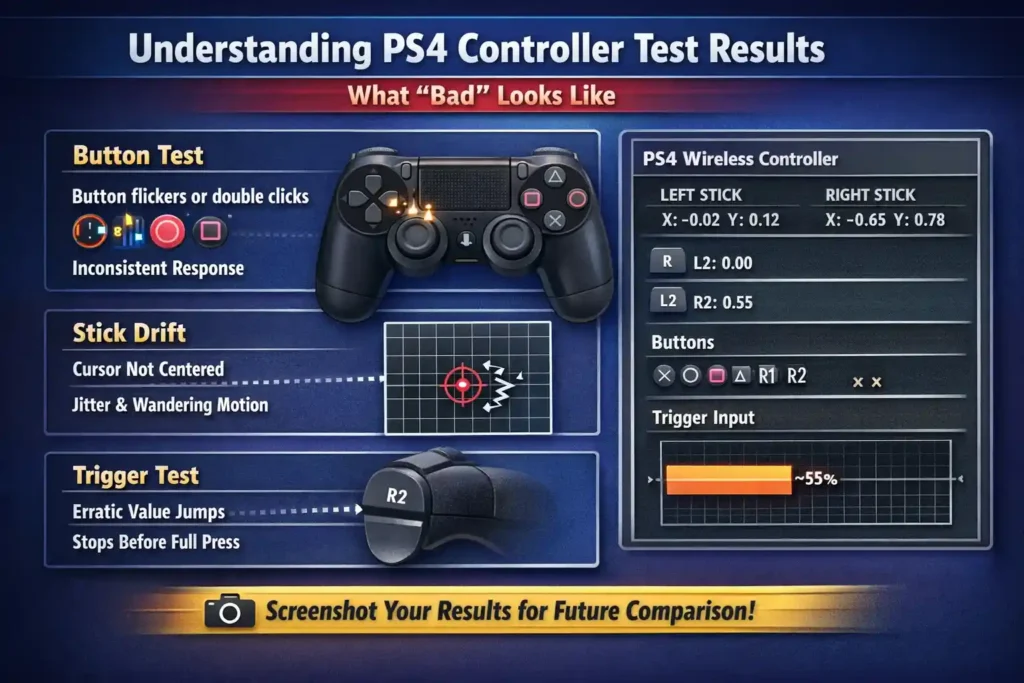
When I run a ps4 controller tester, the screen shows live inputs from the DualShock 4. Each press or movement appears right away. The goal is simple. Check if every input behaves the way it should.
Buttons first.
A normal button test shows a clean on or off signal. Press a button and the tester lights up. Release it and the signal stops. The response should feel instant. If the input flickers or triggers twice, that may show wear inside the button membrane.
Next come the analog sticks.
This part helps spot stick drift symptoms. When you leave the stick alone, the dot or crosshair should sit close to the center point. It should not move by itself. Move the stick around and watch the axis range. The motion should look smooth. If the value shakes or jumps, the tester may show jitter or noise from the stick sensor. That can also affect the deadzone behavior in games.
Now check the triggers.
A trigger test should show a slow, smooth change when you press the trigger. Light pressure should give a small value. Full press should reach the end of the axis range. Sudden jumps or a trigger that stops early can point to wear or dirt.
One thing I always do is take a screenshot of the test results. Later, if I clean the sticks or change settings, I compare the new results with the old ones. It makes problems easier to confirm.
Common Red Flags You Can Confirm in 60 Seconds
- Stick drifting even when you do not touch it
- The cursor slowly pulling in one direction
- A trigger axis that sticks or jumps suddenly
- A button showing a double click from one press
- D pad inputs that register the wrong direction
- Random or intermittent input during the test
One last tip I always follow. Test the controller in two tools. For example, a browser tester and the system gamepad panel. That helps rule out software mapping problems.
Testing a PS4 Controller on Windows Without a Browser
Sometimes I skip the browser and run a quick Windows controller test. Windows can read controller inputs through its built in game controller settings panel. This works well for checking buttons and stick movement from a DualShock 4.
Steps I usually follow
- Connect the controller
Plug the controller into the PC with a USB cable. Or connect it through Bluetooth. - Open the controller panel
Search for the game controller settings area in Windows. Then open the controller properties window. - Watch the input response
Press buttons and move the sticks. The panel should show live movement and button signals. - Check axis movement
Move the analog sticks and triggers. The display should react smoothly without strange jumps. - Look for calibration issues
If the sticks do not center correctly, the panel may allow calibration to help correct the input.
What the Windows test helps confirm
- Button presses register correctly
- Analog sticks return close to the center
- Triggers move through their full range
- The controller appears as a USB HID input device
One thing I always keep in mind. Different drivers or wrappers can change how a DualShock 4 appears to Windows. Some software maps the controller to another device type.
After the panel test, I like opening a game I trust and trying the controller there. Real gameplay sometimes reveals problems a quick test does not show.
If Windows cannot detect the controller or inputs act strange, Microsoft has general troubleshooting help here.
PS4 Controller Testing on macOS (Basic Input Check)
Testing a controller on macOS works a little differently. The system first needs to recognize the controller connection.
Basic steps I follow
- Connect the controller with USB or use Bluetooth pairing
- Confirm the controller shows as a connected device
- Open a compatible game or controller tester app
- Move the sticks and press buttons to check input mapping
Helpful tips
- Some apps support controller testing better than others
- If inputs look wrong, the app may not fully support a macOS controller layout
- Try both wired and Bluetooth testing to compare results
I usually test both connection types. If the problem appears only during Bluetooth, the issue may come from the system wireless stack instead of the controller.
Apple provides general help for connecting Bluetooth accessories here.
Fixes After a PS4 Controller Test: From Simple Settings to Hardware Repair
After running a ps4 controller tester, I usually start with the easiest fixes first. Many DualShock 4 problems come from connection glitches or dirt around the sticks. So I move step by step before thinking about controller repair.
Steps I normally follow
- Restart and reconnect the controller
Disconnect the controller, then connect it again. Try both USB and Bluetooth. Sometimes the input just needs a fresh connection. - Re pair Bluetooth
Remove the controller from the device list and pair it again. This can clear strange wireless issues. - Reset the DualShock 4
I follow the official steps from PlayStation Support to reset DualShock 4. This resets the connection profile without changing firmware. - Clean around the analog sticks
Dust or debris can cause drift. I gently clean analog stick edges using air or a soft tool. This often helps with light stick jitter. - Adjust in game deadzone settings
Many games allow deadzone settings. Increasing the deadzone a little can hide small drift problems. Sometimes this acts like a quick recalibrate step. - Test again before replacing parts
Run another DS4 test after each change. I like saving screenshots or notes from the tester. Comparing before and after results helps avoid replacing parts that still work.
If the same problems show up across multiple tests, then repair or replacement may be the next step.
When Stick Drift Means Cleaning vs Replacement
Stick drift does not always mean the controller is broken. Sometimes it just needs cleaning.
If this happens, try cleaning first
- Light drift or small jitter near the center
- Drift disappears after moving the stick around
- Stick movement still reaches the full axis range
In many cases, dust around the stick sensor causes the problem.
If this happens, replacement may be needed
- The stick always pulls strongly to one side
- The center point changes every time you test
- The stick feels loose with clear mechanical play
- Drift comes back quickly after cleaning
These signs often point to potentiometer wear inside the stick module.
One thing I always recommend. Clean the controller, test it again, then use it normally for about a day. If the drift returns, the hardware likely needs repair.
Reddit and Forum Patterns: Real PS4 Controller Problems People Test For
I read a lot of Reddit threads and tech forums when people talk about ps4 controller tester results. The same common issues show up again and again. Most players run a quick test when something feels wrong in a game.
Here are patterns I see often during troubleshooting.
Aim drifting in games
People often say their aim moves slowly even when they do nothing.
What I usually check:
- Run a DS4 test and watch the stick center point
- Look for small movement or jitter when the stick is untouched
- Check if the axis value sits slightly off center
This usually shows early stick drift.
Trigger feels stuck or strange
Another common report is a trigger that feels slow or sticky.
What I test:
- Watch the trigger axis range in the tester
- Press slowly and check for smooth movement
- Look for sudden jumps or missing input
Sometimes dirt causes it. Sometimes it is wear inside the trigger spring.
Buttons do not register every press
Players sometimes say a button works sometimes but not always.
Things I check first:
- Run a quick button test
- Press the button multiple times
- Try both USB and Bluetooth in case the issue is intermittent
If the input fails only on wireless, it may be a connection problem.
Controller works on PS4 but not on PC
This one shows up a lot in forums.
What I check:
- Look at the driver or software mapping layer
- Confirm the controller appears correctly in the system
- Test in a second tool to check compatibility
Sometimes the controller works fine. The issue comes from the PC software.
Simple template to post your test results
When asking for help online, I like using a clear format. It saves time and helps others understand the issue.
You can post something like this:
- Problem: describe the symptom (example: right stick drifting)
- Device: PC, PS4, or other system
- Connection: USB or Bluetooth
- Test tool used: browser tester or system panel
- Result: what happened during the test
- Screenshot: image of axis or button results
Clear info like this helps forum users spot the real problem faster.
Other Controller Testers You Can Try (For Different Systems)
Sometimes the issue is not the controller itself. I have seen cases where the problem comes from the PC, Bluetooth connection, or input mapping. That is why I like doing a cross platform gamepad test. Testing different controllers with the same controller tester can help isolate the real cause.
If you also use other controllers, these tools may help:
- PS5 controller test
- Xbox controller test
- Xbox 360 controller test
- Switch Pro Controller test
- Joy Con test
Running a gamepad test on multiple controllers can show if the problem comes from the device or the system connection.
If you want to see all available tools in one place, you can check the full list of CyberFanatix tools here.
Final Thoughts: Use a PS4 Controller Tester Before Repairing or Replacing
I usually tell people to confirm the problem first. A PS4 controller tester helps you diagnose issues like stick drift, trigger problems, or missed inputs during a button test. It only takes a minute, and it can save you from replacing a controller that still works.
FAQ
How do I test my PS4 controller for stick drift?
I usually open a ps4 controller tester and watch the live stick axes. Leave the stick untouched and see if the cursor moves. That shows drift test results. If movement appears, reconnect the DualShock 4 and repeat using USB and Bluetooth.
Why is my PS4 controller not detected by an online tester?
This happens sometimes with a browser tester. First try USB instead of Bluetooth. Swap the cable or port. Then try another browser. If it is still not detected, check if the system sees the controller before blaming the tester.
Is a browser based PS4 controller tester accurate?
Yes, it works well for checking inputs. A ps4 controller tester shows button presses, sticks, and trigger movement. But I still cross check results using the system controller panel or a game. That helps rule out mapping or driver quirks.
Should I test using USB or Bluetooth?
I usually test both. USB helps rule out wireless interference. Bluetooth testing helps reveal pairing problems. If the DualShock 4 behaves differently between the two, the issue may come from the connection instead of the controller.
What should I do if the triggers do not reach full range?
Start with another trigger test using a USB connection. Then check for dust or sticking around the trigger. If the axis still stops early in multiple tools, the trigger mechanism may have wear or mechanical resistance.
Can a PS4 controller tester check the touchpad and motion sensors?
Some tools can read touchpad clicks and motion sensors. But not every browser tester supports these inputs. If a game depends on them, test the controller in another tool or inside the game to confirm the result.
When should I repair or replace my DualShock 4?
If strong drift, missed inputs, or trigger issues appear in several tests, repair may be the best option. Try reset, cleaning, and deadzone changes first. If problems remain across USB and Bluetooth tests, repair or replacement becomes the practical step.